Upcoming Meeting
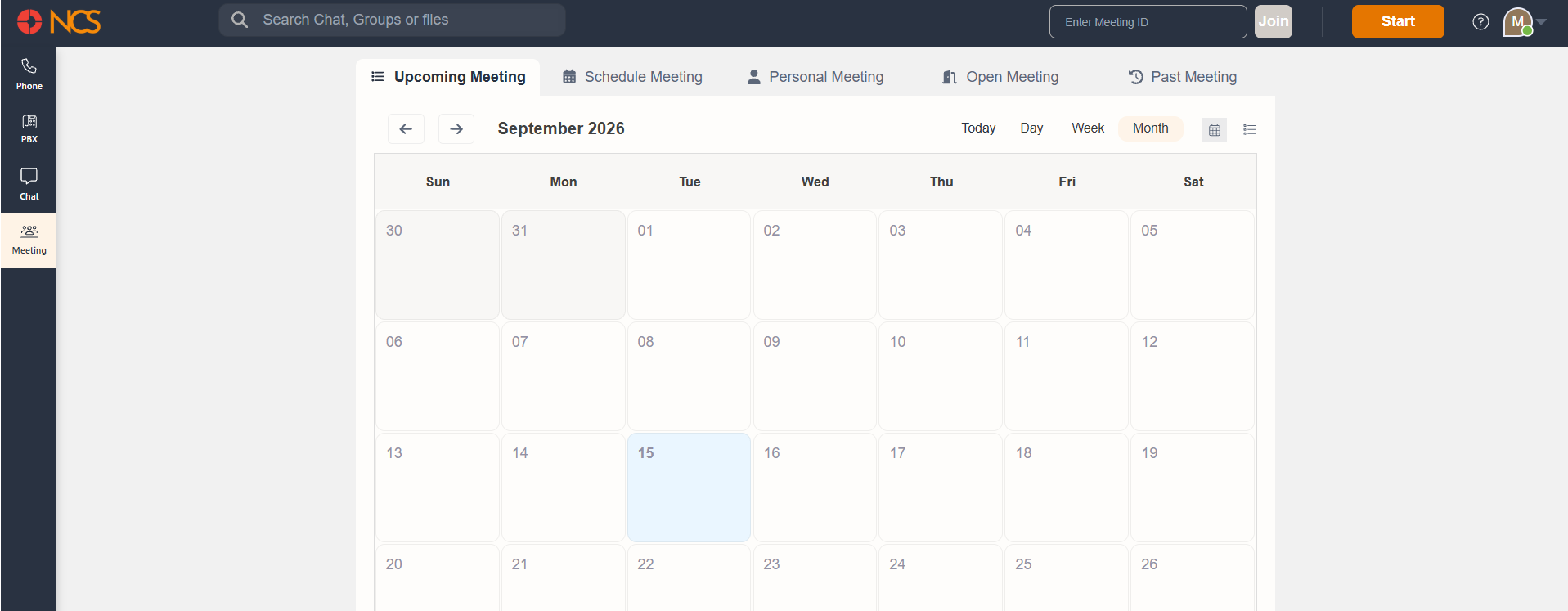
The Upcoming Meeting tab serves as a quick view of meetings in the future. All the scheduled meetings and invited meetings will be shown here.
There are two views for Upcoming Meetings - Calendar View and List View, which can be switched by clicking on the respective icons at the top right corner of the tab.
Calendar View
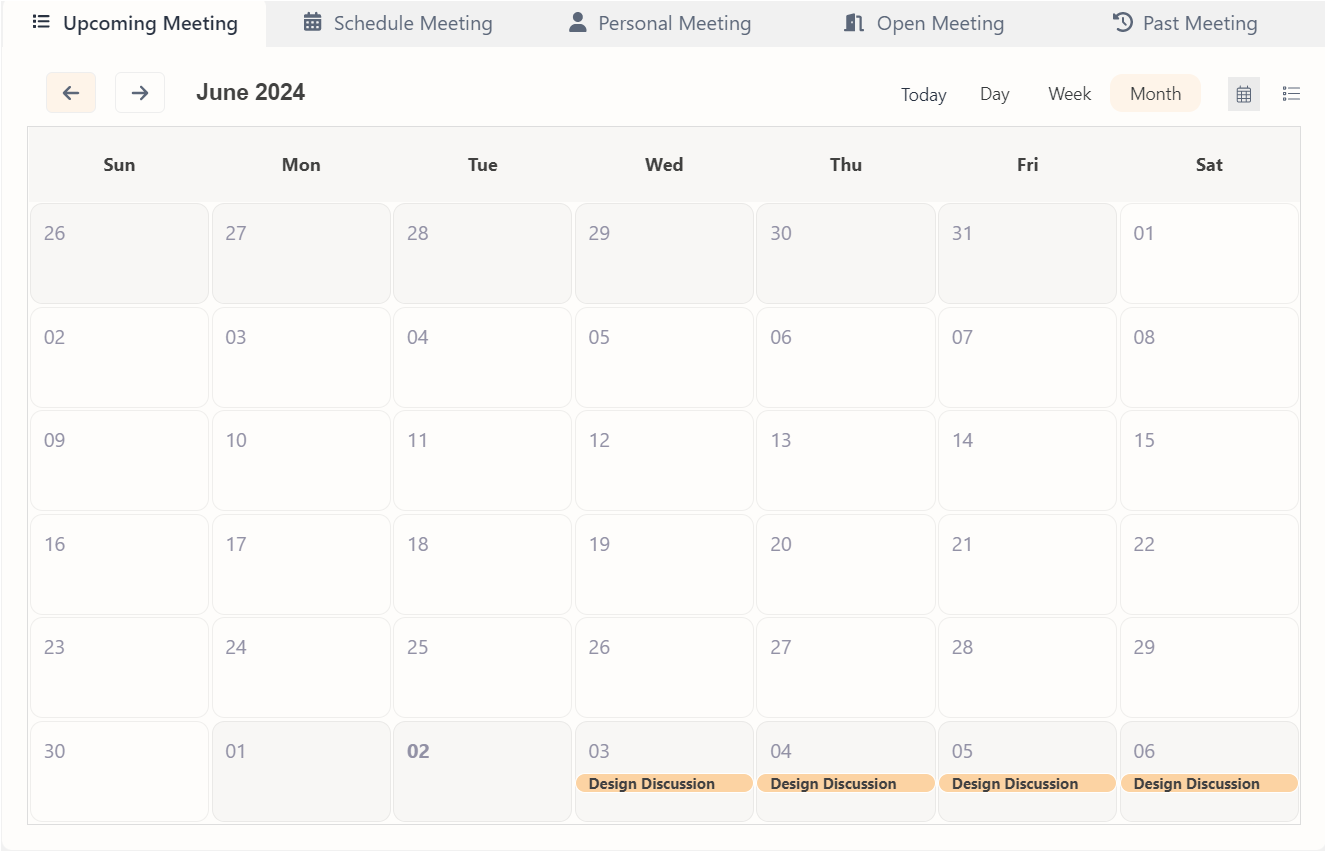
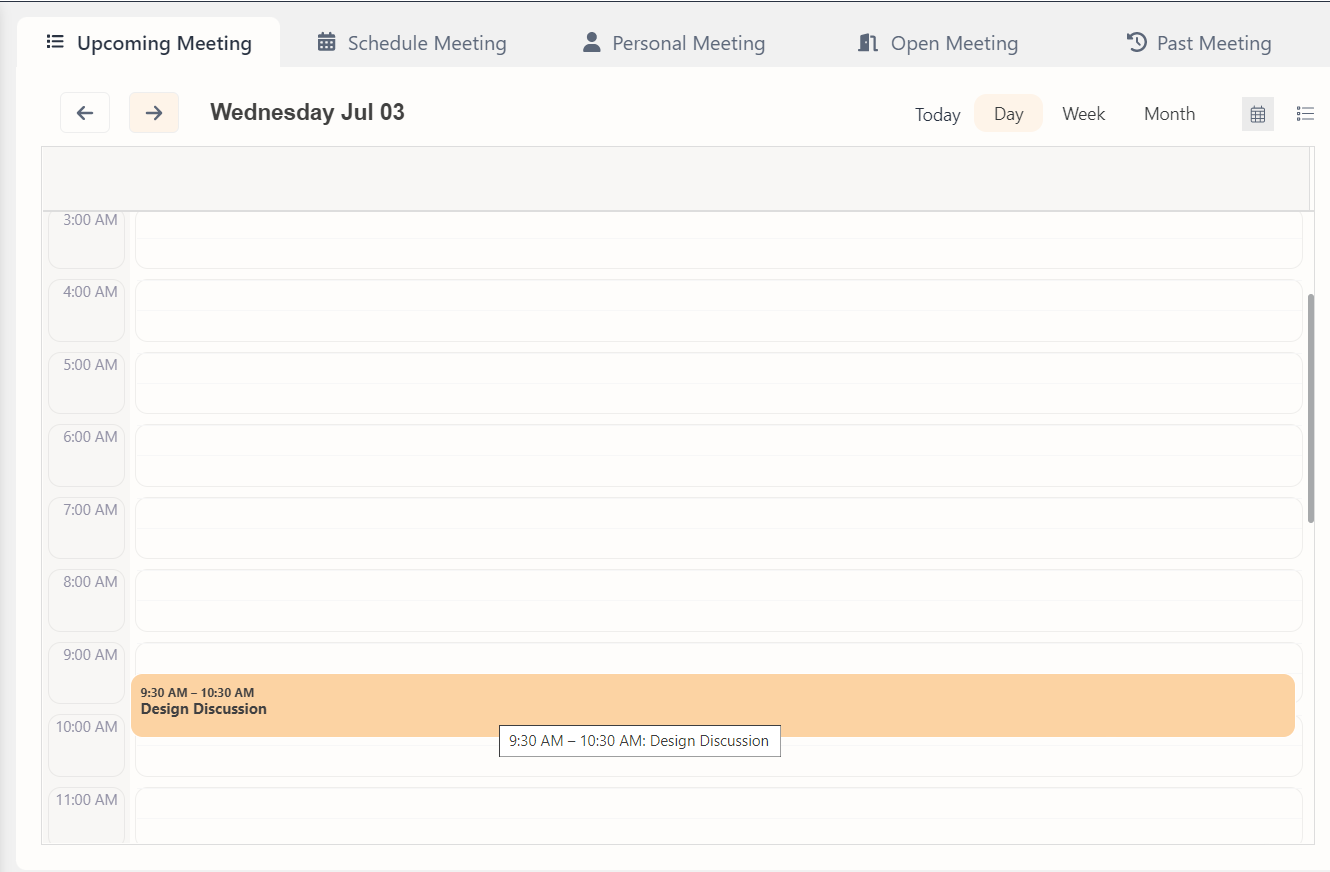
The Calendar View indicates meetings in a calendar. The Calendar View can be filtered in four different ways - Today, Day, Week, Month. This filtering can be done from the top right of the Upcoming Meetings tab, by clicking in the respective buttons.
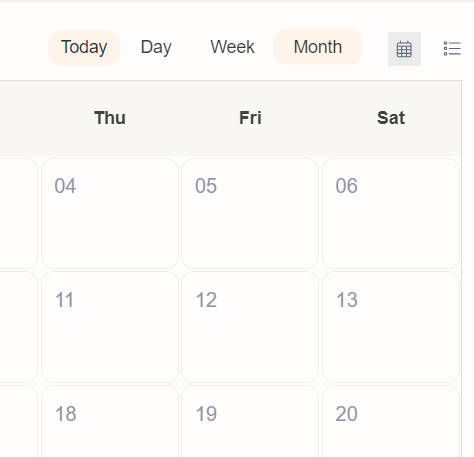
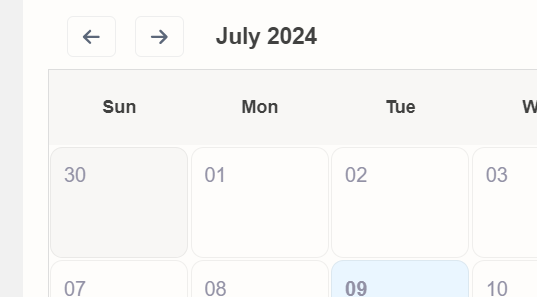
Each calendar view can be navigated backwards or forwards in days, weeks, or months by using the Navigation Arrows at the top left end of the tab. Also, it show the current selected view
The following are the different filter views of Calendar View.
View Meeting
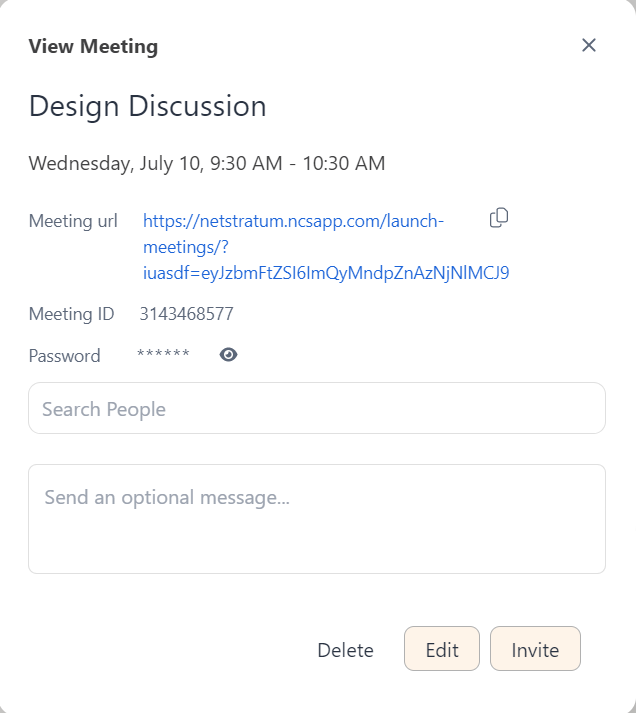
Each meeting can be viewed by clicking on the respective colored bars. A View Meeting modal will open up.
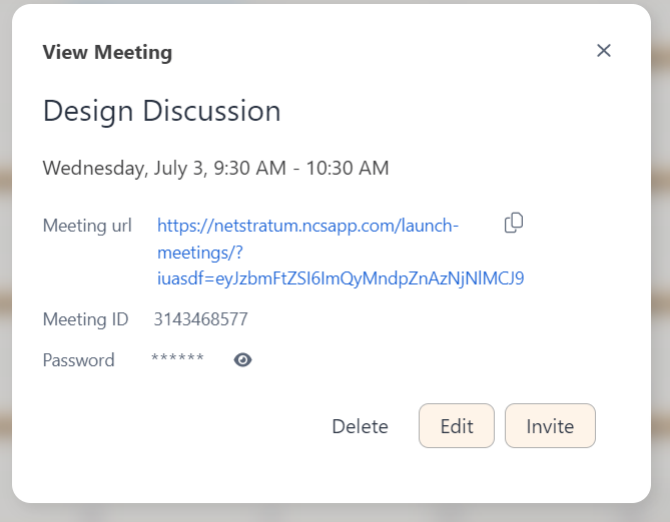
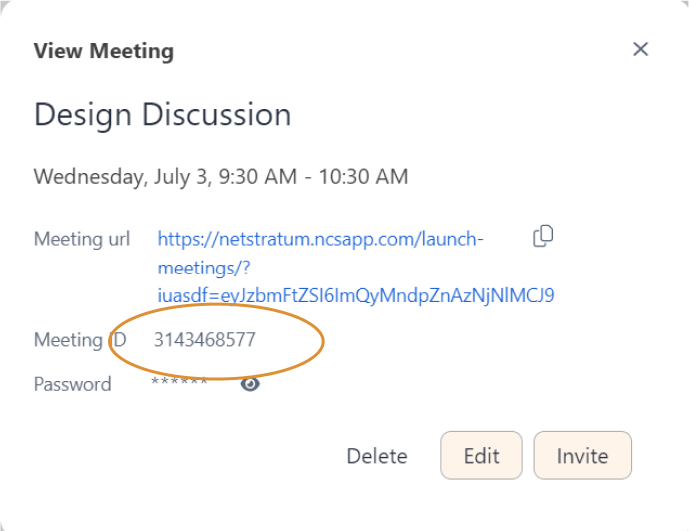
The View Meeting modal will display information about the meeting like Meeting Name, Date, Day and Time of the meeting, Meeting URL, Meeting ID, Password and the Invitees to the meeting.
The Meeting URL is a link which can be clicked to launch the meeting.
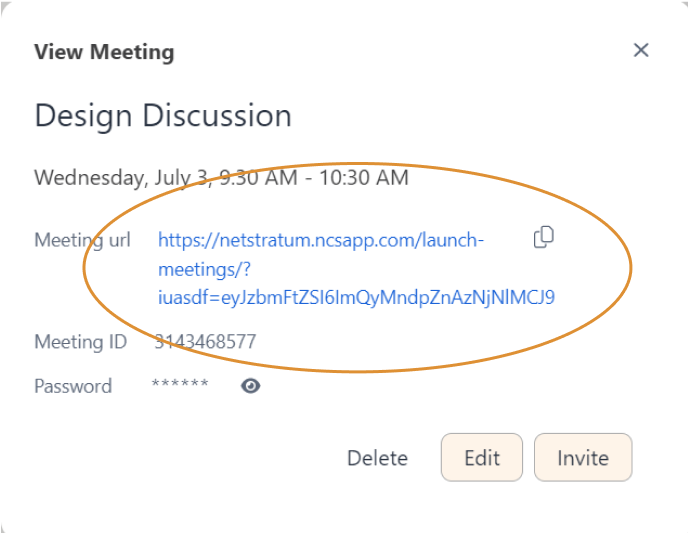
Towards the right end of the Meeting URL, the Copy icon serves to copy the link to the clipboard to be used for future uses.
The Password is by default hidden. The password can be viewed by clicking on the Eye icon.
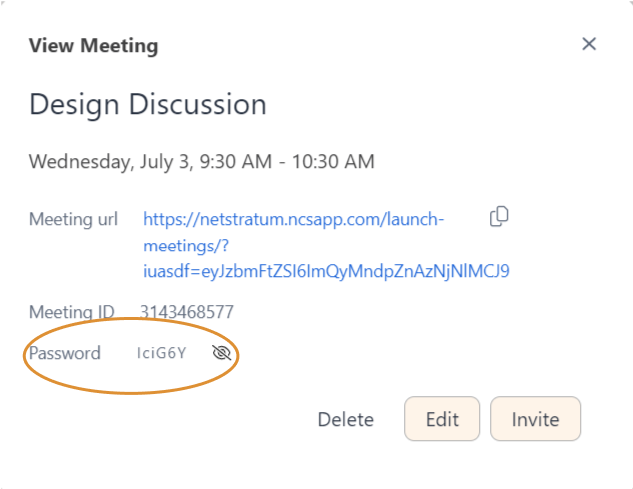
Toward the bottom end of the modal, there are Invite, Edit and Delete buttons.
Delete Meeting
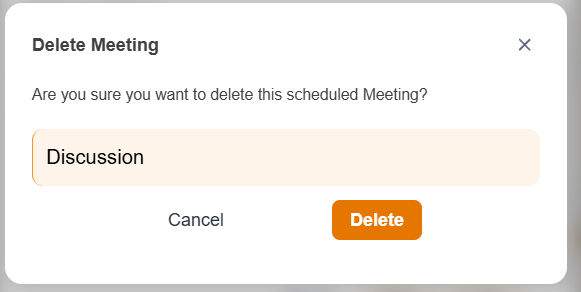
Delete button serves the purpose of deleting the meeting. The following confirmation modal will pop up.
Case 1- When recurring option is enabled from the schedule meeting section
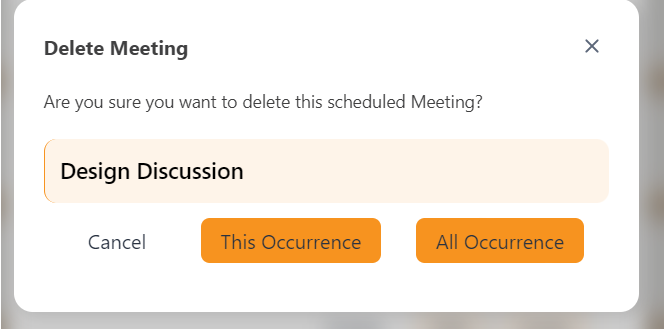
Click on the Delete button to delete the meeting. Click on the Cancel button to cancel the deleting process.
Case 2- When recurring option is not enabled from the schedule meeting section
Edit Meeting
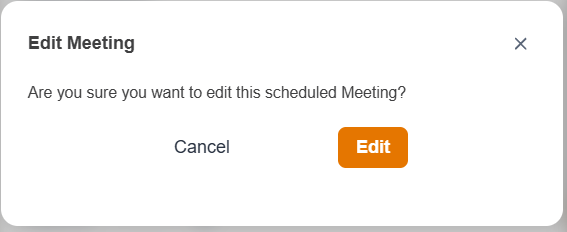
Clicking on the Edit button to edit the details of the meeting. If the meeting is a recurring event, the following modal will pop up.
Case 1- When recurring option is enabled from the schedule meeting section
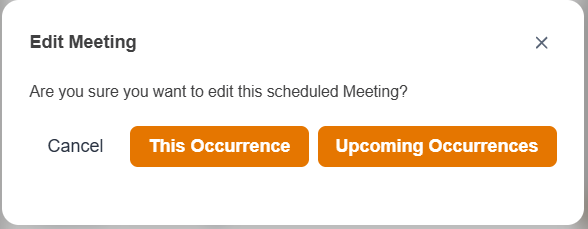
Click on This Occurrence to edit the selected instance only - it will edit the details of the meeting for the selected meeting only. Click on Upcoming Occurrences to edit all the future recurrences of the selected meeting.
Clicking on This Occurrence or Upcoming Occurrences will take you to the Edit tab of Meetings Section.
Case 2- When recurring option is not enabled from the schedule meeting section
You can edit details of the meeting here. Once details are updated, click on the Update button to save the changes. If you do not want to save the changes, click on the Cancel button.
The details of the meeting are explained in detail in the Schedule Meeting section.
Invite Meeting
To invite people to the meeting, click on the Invite button. This will expand the modal as below.
You can search people in the Search field and select them. This will add the invitees as chips to the search field. Click on the Close button on the chips to remove the selection, if required. You can send an optional message also, by typing in the Optional message field. Once done, click on the invite button to Invite the selected participants to the meeting. This will initiate an invite mail to the recipient’s email.
List View
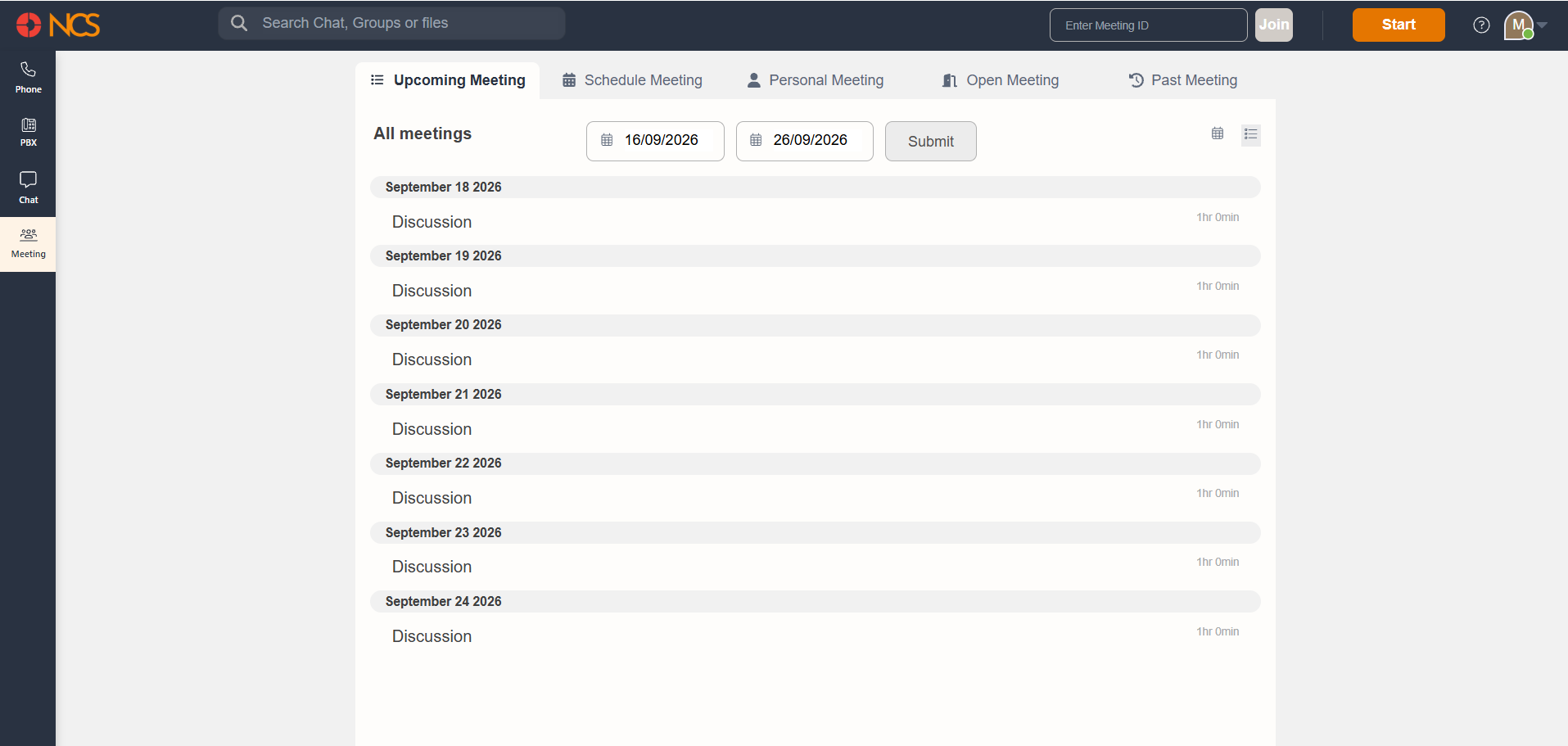
The List View can be accessed by clicking the list icon at the top right corner of the Upcoming Meeting tab. The view will list all the upcoming meetings separated into date-wise sections.
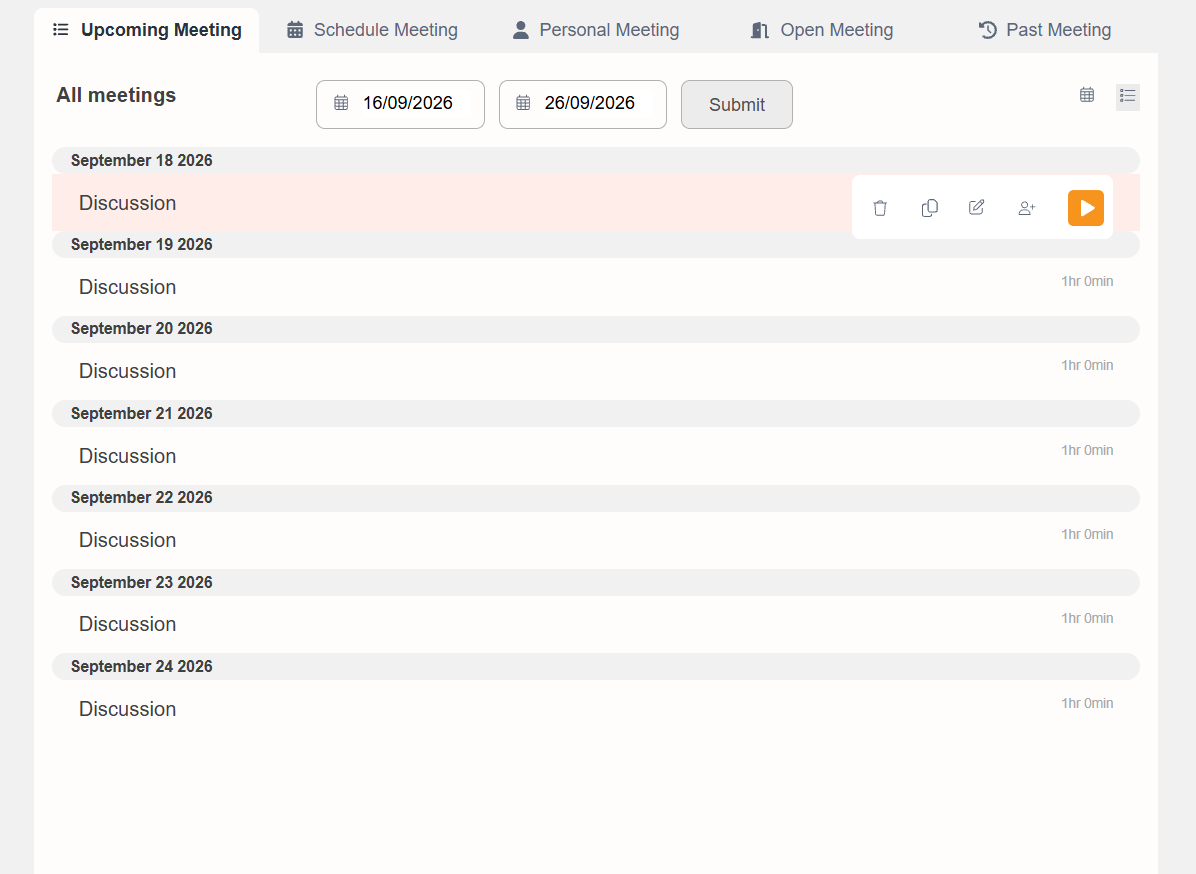
Selecting a meeting row reveals quick action icons:
- Orange Play Button : Launch and enter the meeting immediately[1].
- Person+ Icon : Add or invite participants.
- Pencil Icon : Edit the meeting details.
- Copy Icon : Copy the meeting link to share with others.
- Trash Can Icon : Delete or cancel the scheduled meeting