SUP 2.1 Review and filter agents
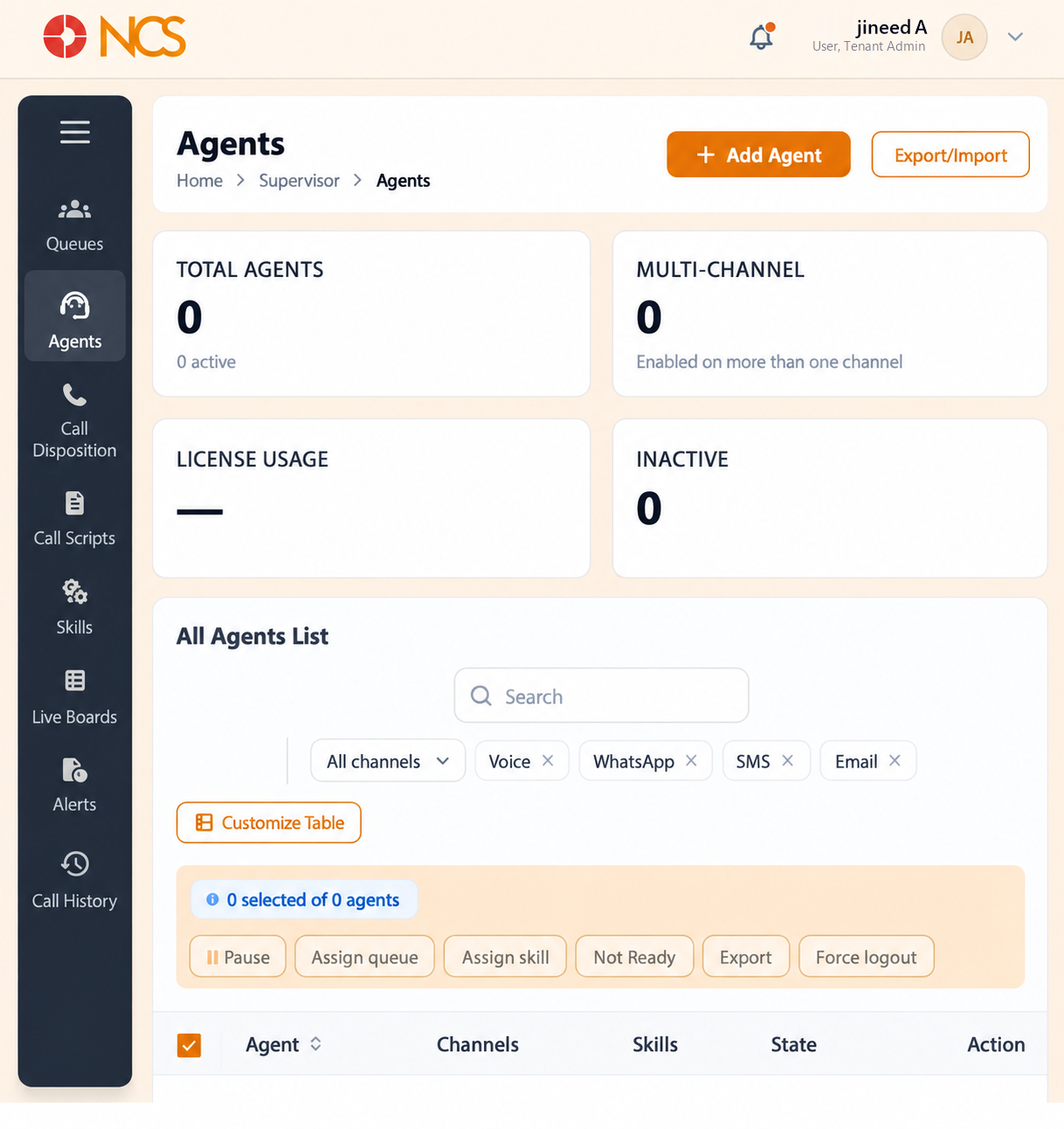
- Open Penyelia > Ejen.
- Read the four summary figures, which the interface labels in capitals:
| Tile | What it reports |
|---|---|
| TOTAL AGENTS | The agent count, with the number active beneath it. |
| MULTI-CHANNEL | "Didayakan on more than one channel." |
| LICENSE USAGE | Seats consumed against your entitlement. |
| INACTIVE | Ejen not currently active. |
- Below them sits the All Ejen List, with the channel filters All channels, Voice, WhatsApp, SMS and Email.
- Pilih Customize Jadual to change which columns are visible. The table columns are Ejen, Channels, Kemahiran, State and Tindakan.
- Pilih agent checkboxes to enable the bulk actions: Pause, Assign queue, Assign skill, Not Ready, Export and Force logout. A counter reads n selected of n agents, and a running total appears beneath the table as Total Matching.
- Pilih an agent row to reach the live intervention controls for an active interaction. The page states this itself: "Klik an agent row to access quick intervention controls (Listen, Whisper, Barge, Transfer, Send Message)."
An Export/Import control sits beside Add Ejen at the top of the page.
This page is multi-channel, and the rest of the module is not. The channel filters offer WhatsApp, SMS and Email alongside Voice, and the MULTI-CHANNEL tile counts agents enabled on more than one. Nothing else in the Penyelia module reviewed here exposes those channels. Sahkan with support@ncsapp.com which channels are actually licensed and live on your tenant before you plan around them.
Read License Usage before you add agents. It is the figure that tells you whether your plan has room. Compare it with the seat count on Penyewa > Dompet Bil (see 4.1 in the Penyewa module draft) before a hiring intake.
The four live intervention controls are different in kind. Listen is silent to both parties. Whisper is heard by the agent only. Barge joins the call so the customer hears you. Transfer moves the call. Know which one you have selected before a customer hears an unexpected third voice.
Figure key, Penyelia Ejen
- Jejak Navigasi.
- Left navigation, with Ejen selected.
- Total Ejen summary.
- Multi-Channel summary.
- License Usage summary.
- Inactive summary.
- Cari field.
- Channel filters: All channels, Voice, WhatsApp, SMS, Email.
- Customize Jadual control.
- Add Ejen button.
- Ejen rows, each with a selection checkbox.
- Bulk action controls: Pause, Assign queue, Assign skill, Not Ready, Export, Force logout.
- Live intervention controls on a selected row: Listen, Whisper, Barge, Transfer, Send Message.