2.6 Add a new user
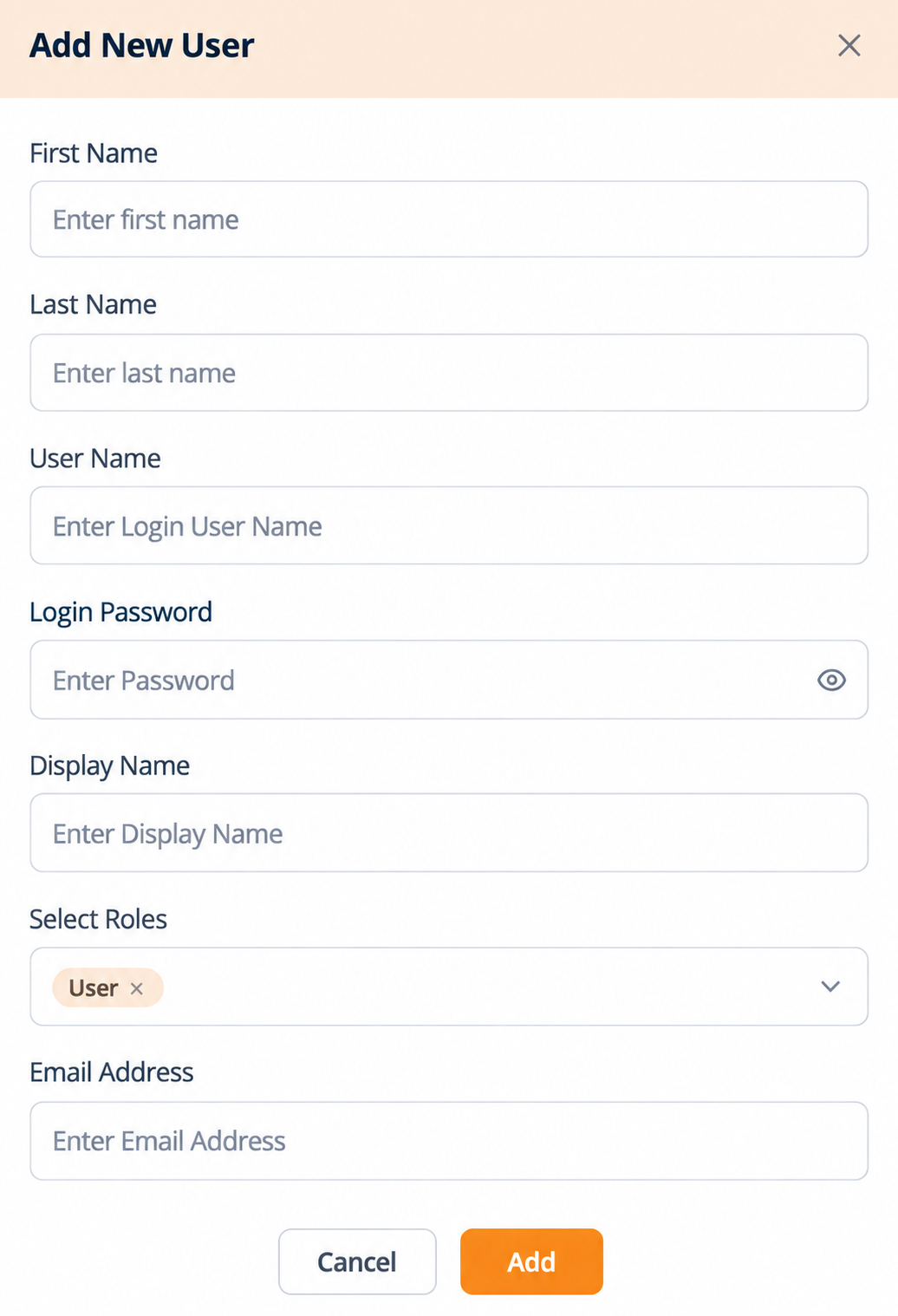
Selecting Add New Pengguna at the top right of the Pengguna list opens a modal titled Add New Pengguna.
Complete the form:
| Medan | What to enter |
|---|---|
| First Nama | The user's first name. |
| Last Nama | The user's last name. |
| Pengguna Nama | The unique login identifier this user will sign in with. It cannot be changed afterwards, so agree to a convention before you start creating accounts. |
| Login Kata Laluan | The initial password for the account. Pilih the eye icon to reveal the characters and confirm what you typed. |
| Display Nama | The name shown for this user across the platform, including in the account menu and the Pengguna list. |
| Pilih Roles | The role or roles for this user. See below. |
| Email Address | The user's email address, used for credentials and notifications. |
Pilih Roles. The dropdown offers exactly two options, Penyewa Admin and Pengguna. The field arrives pre-filled with Pengguna, so a role is already applied before you touch it. Selected roles appear as tags inside the field. Pilih the dropdown to add a role, and select the x on a tag to remove that role. More than one role can be assigned to the same user.
The dropdown also renders a blank, highlighted, selectable option above Penyewa Admin and Pengguna. It is not a role. Ignore it and select one of the two named options.
Save or discard -
- Pilih Add to create the account.
- Pilih Batal to close the modal without creating the user.
- Pilih the X at the top right of the modal to close it without saving.
How this form validates. No field on this form is marked as required, and Add is clickable on a completely empty form. Nothing is checked as you type and nothing is greyed out to stop you. Validation runs only after you select Add. Two practical consequences:
- Fill in all seven fields before selecting Add. Do not treat a clickable Add as confirmation that the form is complete.
- The Email Address field is an email-type input, so the browser applies its own format check on that one field, for example rejecting a value with no @. That check is the browser's, not the product's.
After the account exists, complete two more steps before the user can make calls: map them to telephony and unlock PBX and voice access (see 2.11).
Figure key, Add New Pengguna modal
- Modal title, Add New Pengguna.
- X close control, top right of the modal.
- First Nama field.
- Last Nama field.
- Pengguna Nama field.
- Login Kata Laluan field, with the eye icon that reveals the characters.
- Display Nama field.
- Pilih Roles field, pre-filled with the Pengguna tag, with the x on the tag and the dropdown arrow.
- Email Address field.
- Batal button.
- **Butang Tambah.