SUP 7.1 Review and acknowledge alerts
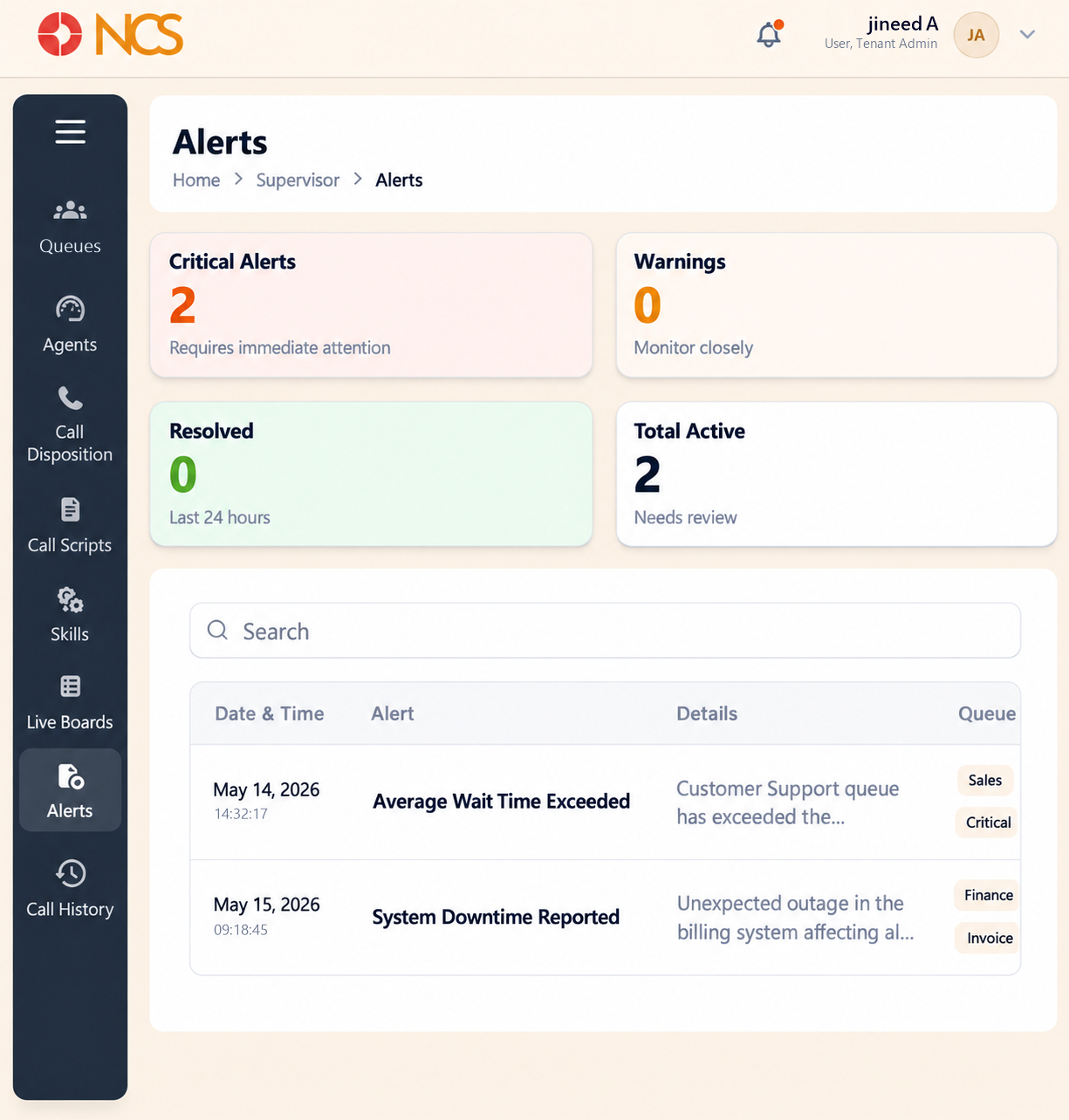
- Open Superviseur > Alertes.
- Read the four summaries:
| Summary | Its own caption |
|---|---|
| Critical Alertes | "Requires immediate attention" |
| Warnings | "Monitor closely" |
| Resolved | "Last 24 hours" |
| Total Active | "Needs review" |
- Review the columns: Date & Time, Alert, Details, Fichiers d'attente, Duration, Statut and Action.
- Sélectionnez Acknowledge in the **Colonne Action once an alert has been reviewed.
Date & Time is shown as a date above a time. Fichiers d'attente may list more than one queue per alert. Duration is shown as elapsed time, for example 05:42. Statut takes values including Critical.
Observed alert types include Average Wait Time Exceeded and Système Downtime Reported, each with a plain-language Details line such as "Customer Support queue has exceeded the maximum wait time threshold".
Acknowledge means you own it. Acknowledging changes the alert's status and takes it off the active list, so it stops prompting anyone else. Do it after you have read the Details and know who is following up, not to clear a screen.
Read Duration before Date & Time. An alert raised an hour ago and still running is a live problem; one that lasted forty seconds last Tuesday is a data point. Duration separates the two faster than the timestamp does.
Tune the queue, not the alert list. A queue that produces the same warning every afternoon has an SLA Time or a staffing pattern that does not match reality. Fix it in SUP 1.6, or the alert list becomes noise everyone learns to acknowledge without reading.
Figure key, Superviseur Alertes
- Fil d'Ariane.
- Left navigation, with Alertes selected.
- Critical Alertes summary.
- Warnings summary.
- Resolved summary.
- Total Active summary.
- Rechercher field.
- Date & Time column.
- Alert column.
- Details column.
- Fichiers d'attente column.
- Duration column.
- Statut column.
- Acknowledge control on the row.