2.8 Change a user's password
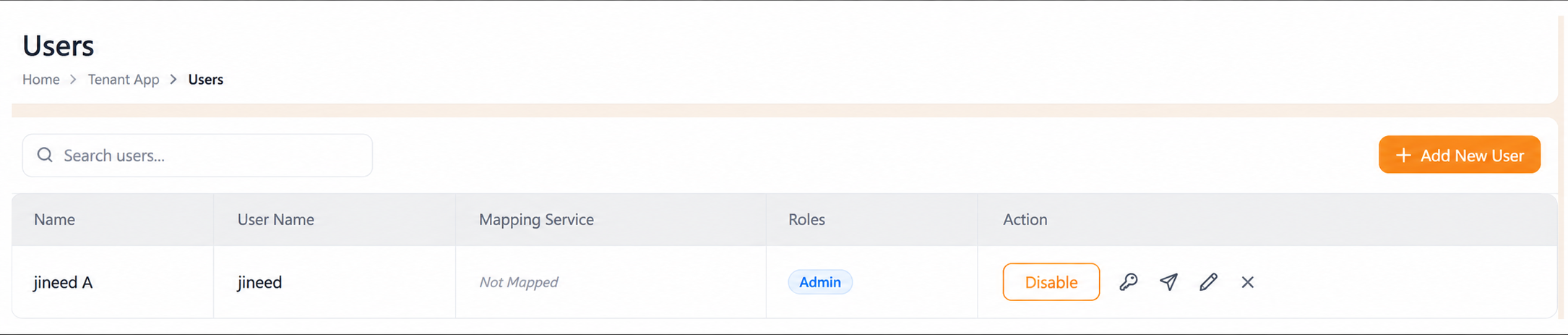
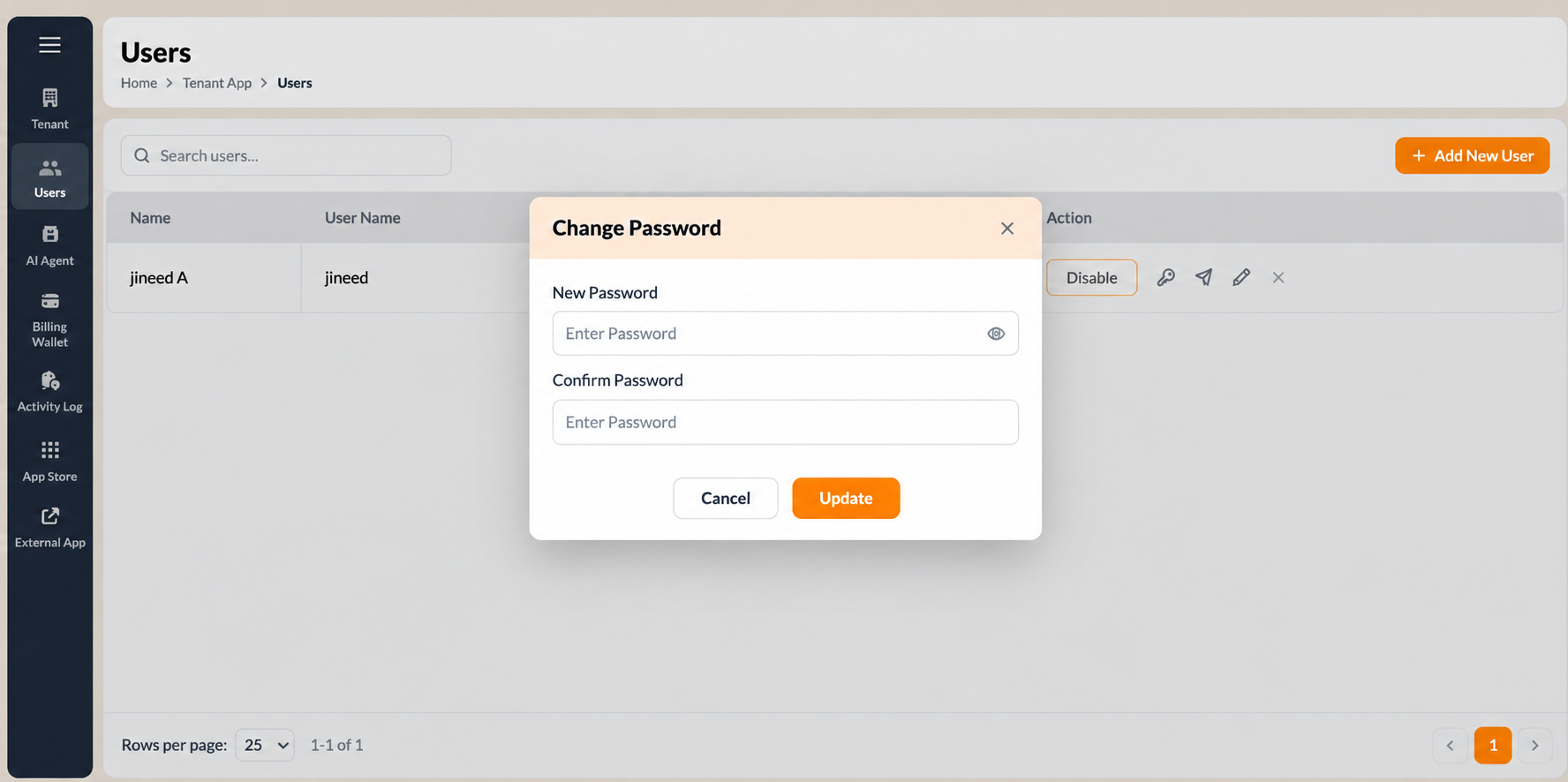
The row action is labelled Change Contraseña; the same action on the Edit Usuario page is labelled Reset Contraseña. Both open the Change Contraseña modal.
- Open Inquilino > Usuarios.
- Seleccione the key icon (Change Contraseña) on the user's row.
- In New Contraseña, enter the new password. Seleccione the eye icon to reveal the characters and confirm what you typed.
- In Confirmar Contraseña, enter the same password again.
- Seleccione Update to apply it.
To close the modal without changing the password, select Cancelar or the X at the top right of the modal.
Tell the user their new password through a channel other than the one you are administering, and have them change it at their next sign-in. Do not send passwords in the same email thread as a support request.
Figure key, Change Contraseña modal
- Modal title, Change Contraseña.
- X close control, top right of the modal.
- New Contraseña field, with the eye icon.
- Confirmar Contraseña field, with the eye icon.
- Cancelar button.
- Update button.