Global Search
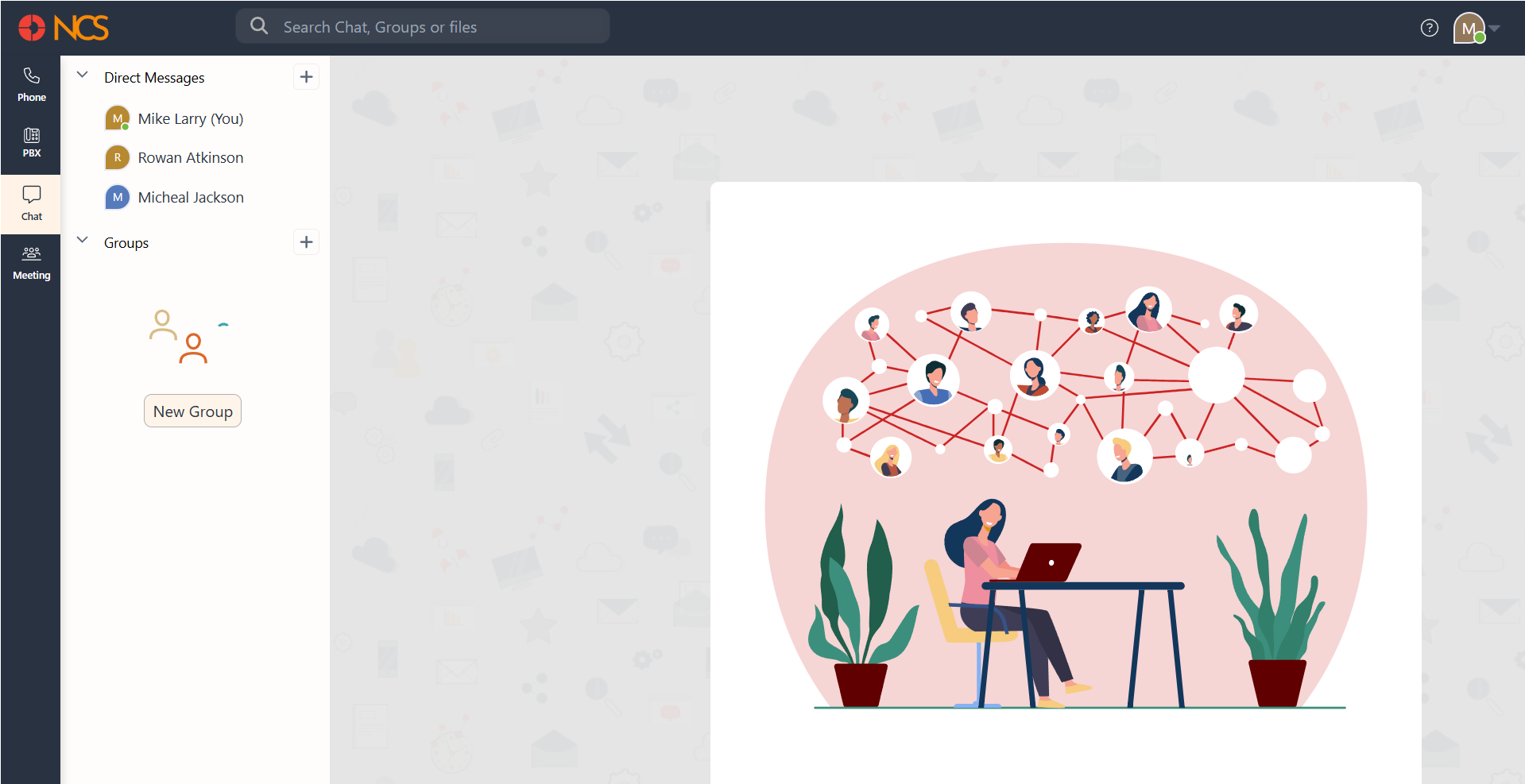
The Global Search feature on the NCS allows users to search with keywords on the entire app, including custom filtering based on People, Direct Messages, Groups, and Files. Global Search can be accessed by clicking on the Search Bar in the Top Bar of the app.
Search Results
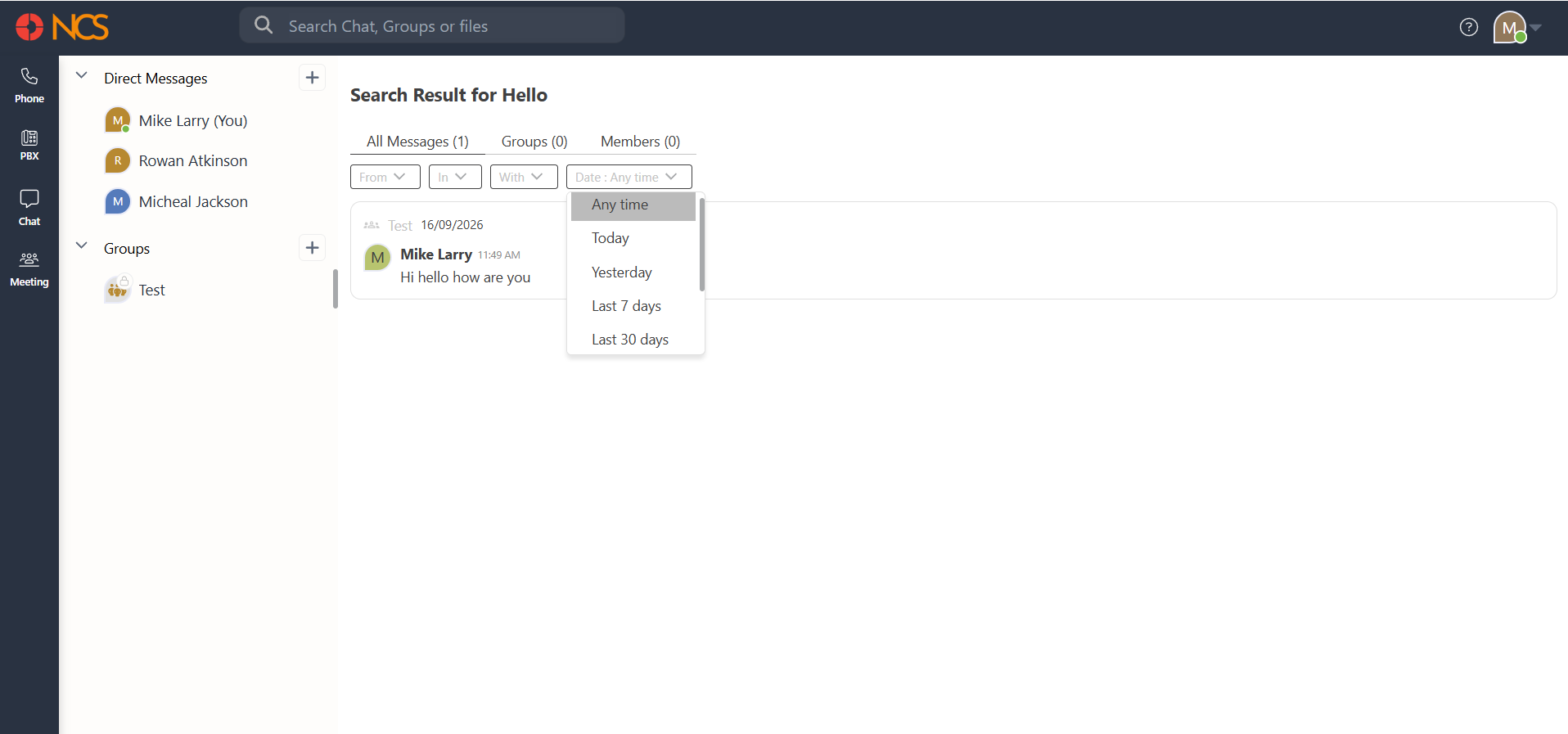
The Search Results page lists all the results for the specific search you have performed.
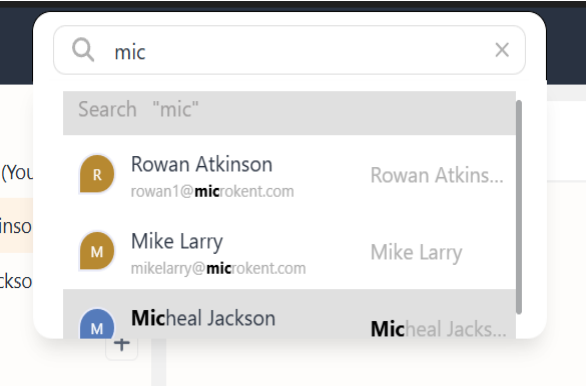
The search results highlight matching text in bold within each entry to help you quickly identify relevant matches
This can be further filtered on Type and Date.
The main filters are made to tabs for quick filtering. The tabs are as follows.
All Messages- This tab lists search results for the keyword from all the messages received or sent.
Groups - This tab lists search results for the keyword from Group Chats only
Members- This tab lists all members with the key word
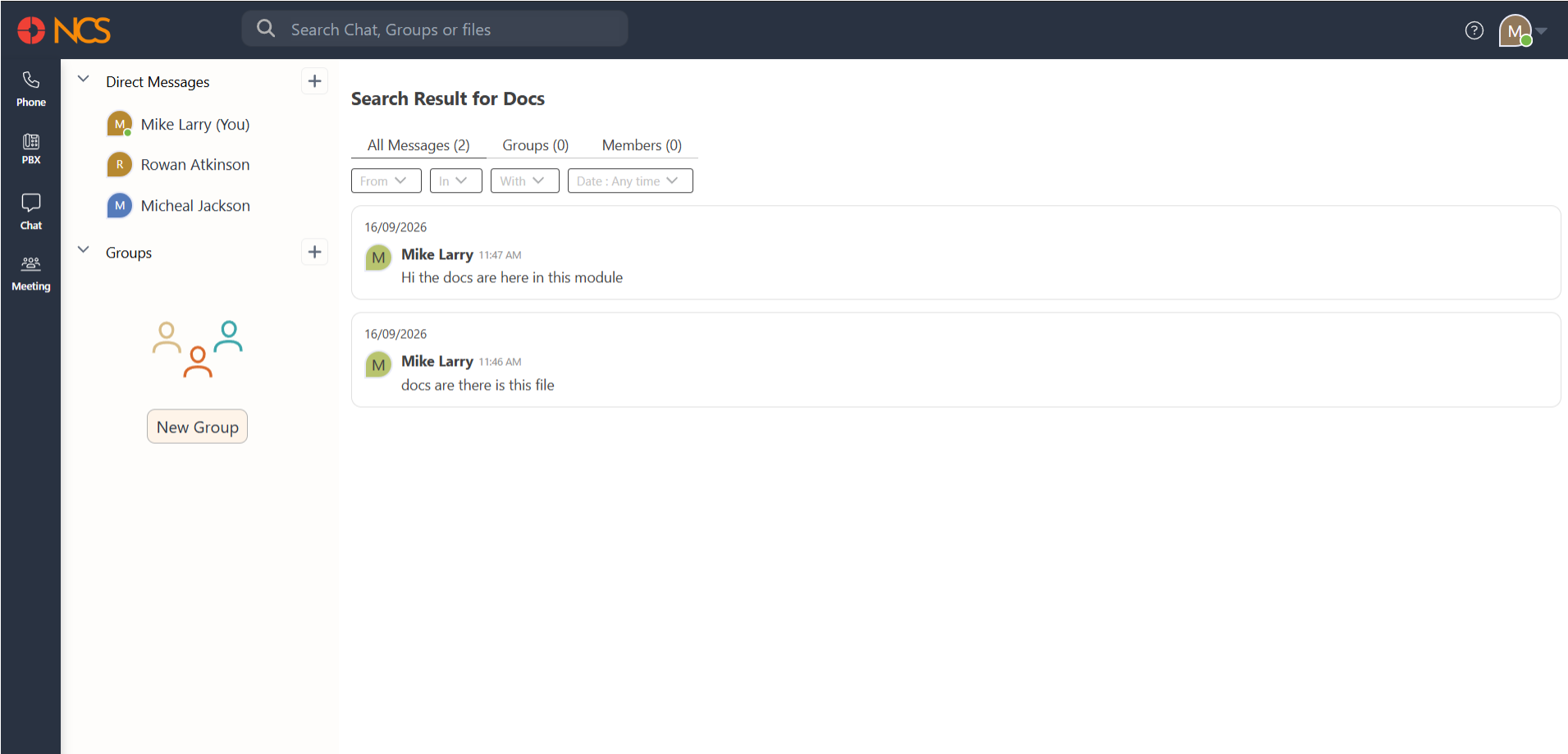
Under All Messages , there are further filtering options on four categories: From, In With, and Date. You can choose one or more filtering options at a time for more refined search results.
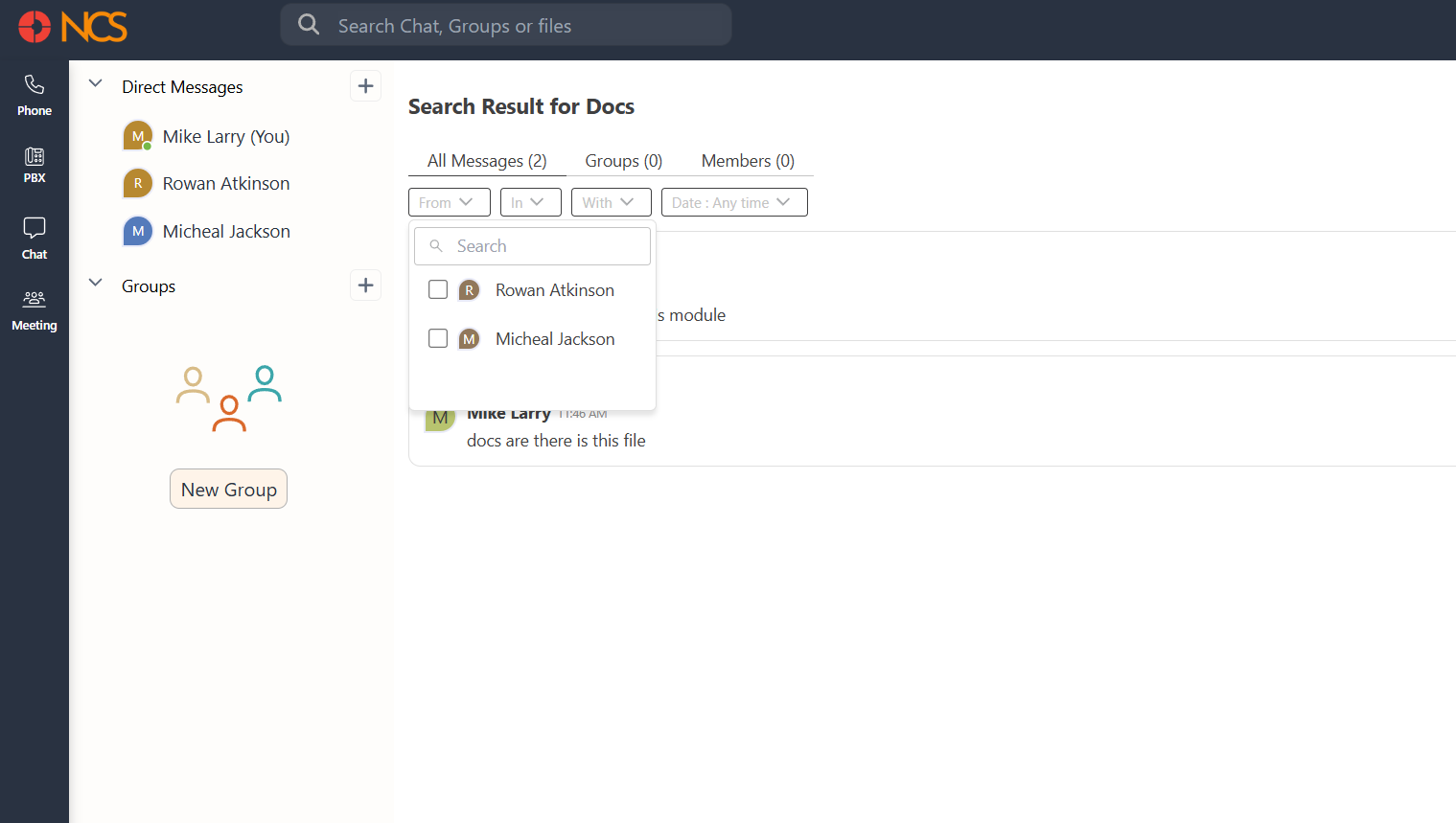
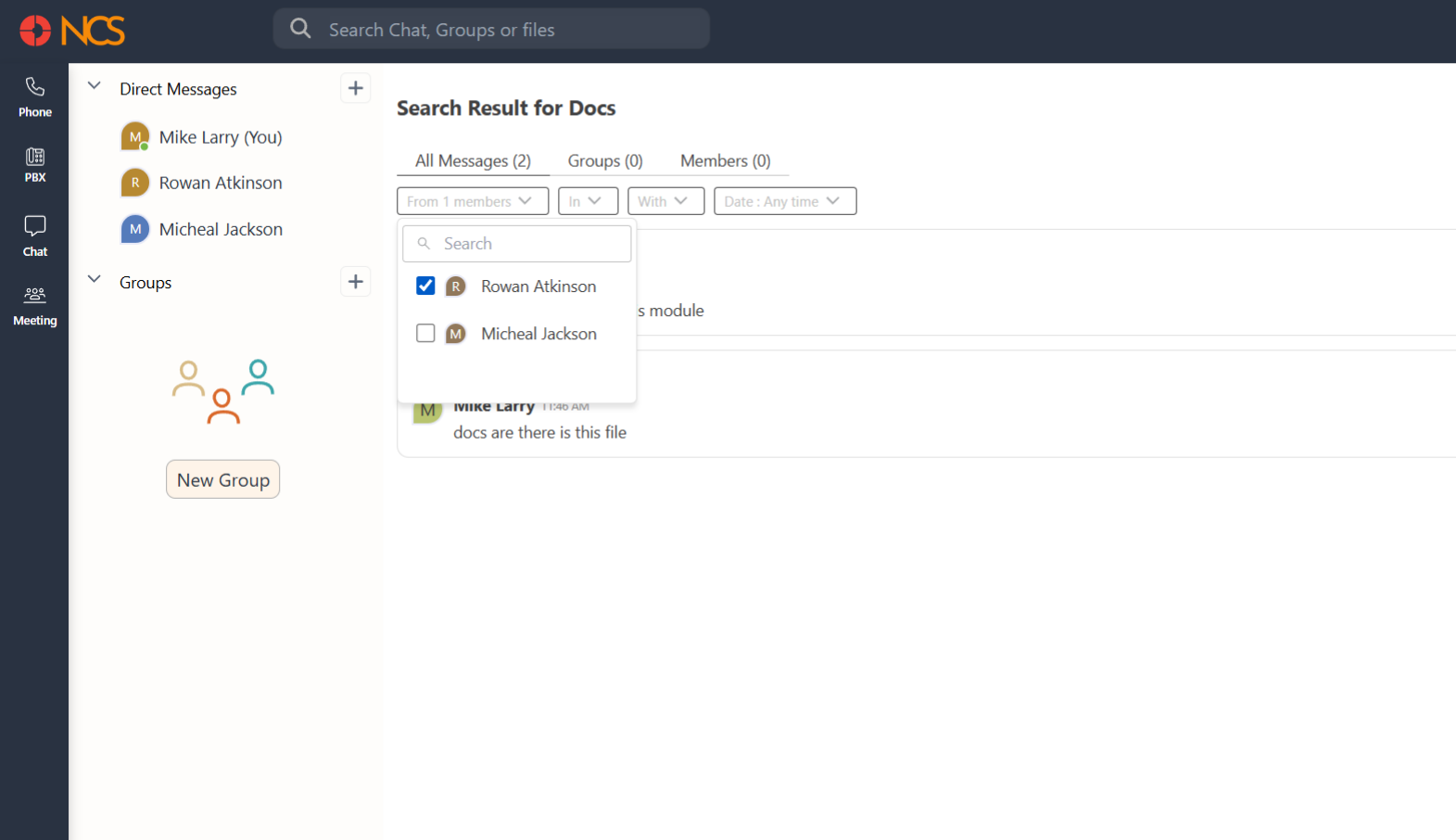
The From option enables users to find results for the keyword specifically from any selected individuals. For example, If you search for the keyword ‘report’ and Select James from the From dropdown, then you will get search results of messages / files with keyword ‘report’ from James, both from your direct conversation with James and from any groups you and James are part of. Users can search and select multiple People by clicking on the check boxes across their names. You can also easily clear them using the Clear All option.
The In text box works similarly, with a search bar and a list of checkboxes displaying group names and individual names listed in NCS. Users can search for keywords and get results by clicking the checkboxes.
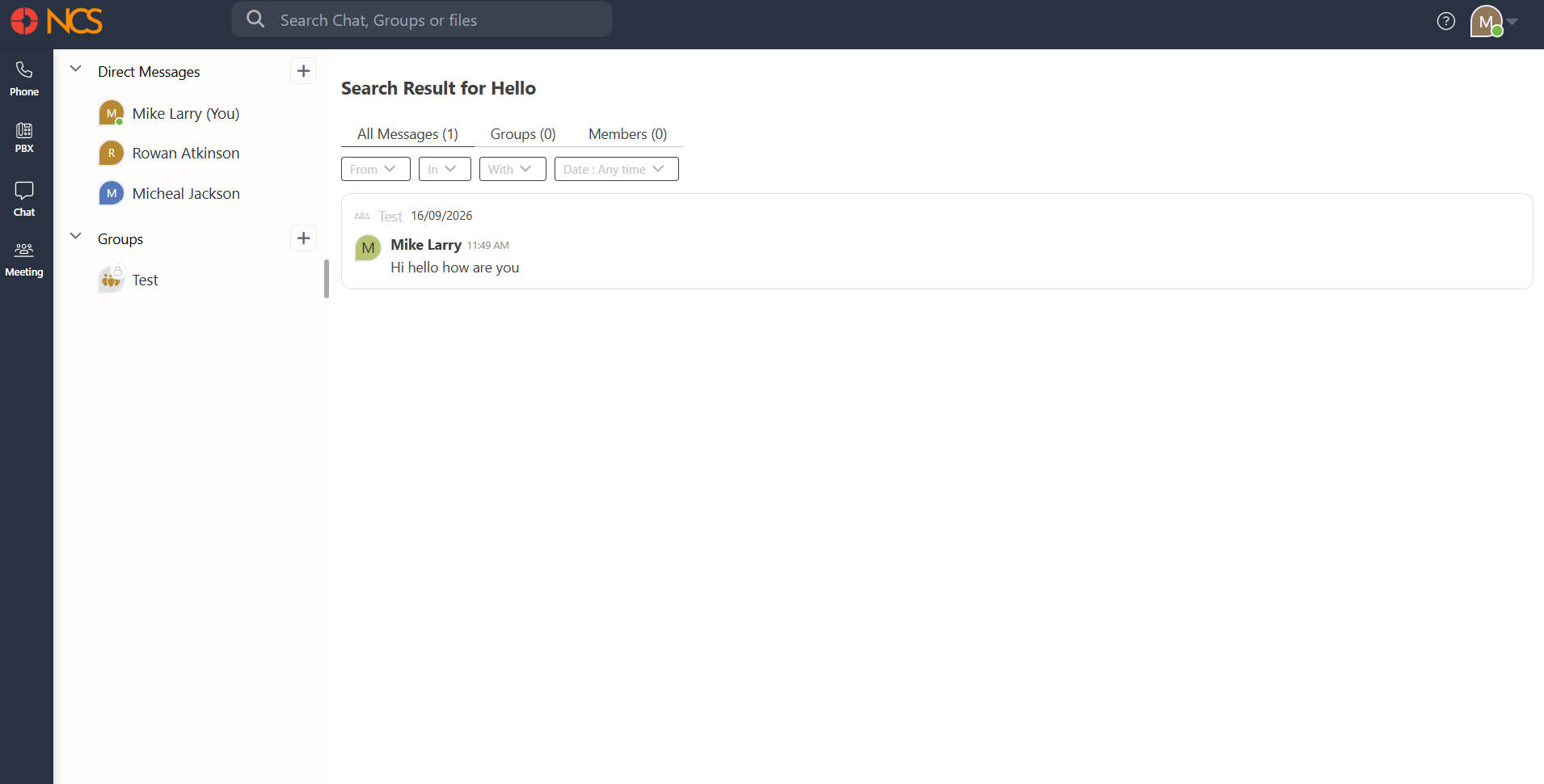
With
The With option enables users to find results for the keyword specifically with any coworker. For example, If you search for the keyword ‘report’ and select a coworker from the With dropdown, then you will get search results of messages with keyword ‘report’ with the specified coworker and the Group to which the coworker belongs.
The Date option enables users to filter out the search results within a specific period of time. The drop down lists some quick time periods - All, Today, Yesterday, Last 30 Days, Last 3 Months, as well as you can search in a custom time period by selecting Custom. Users can select the desired timeframe to filter the search results.
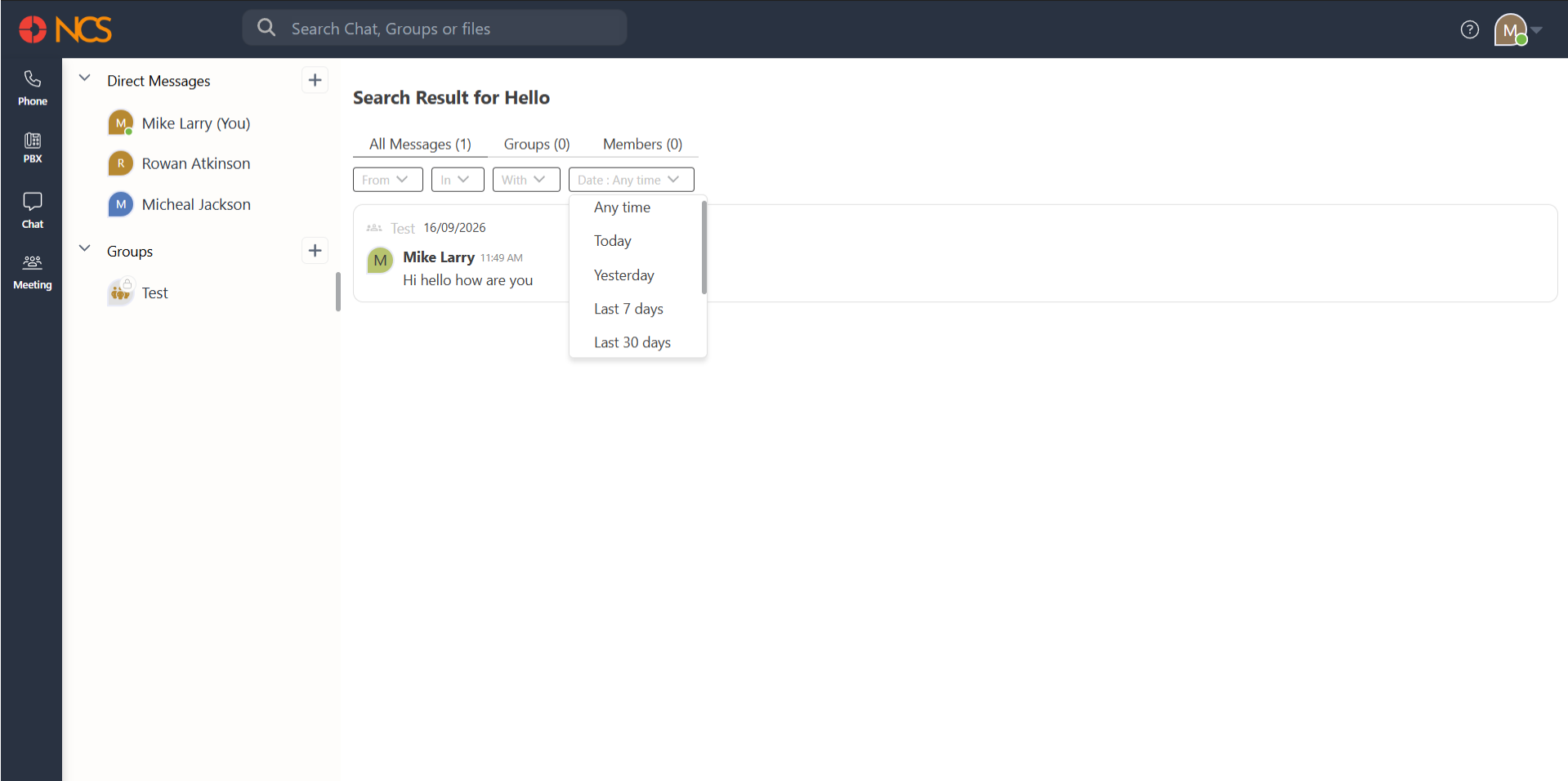
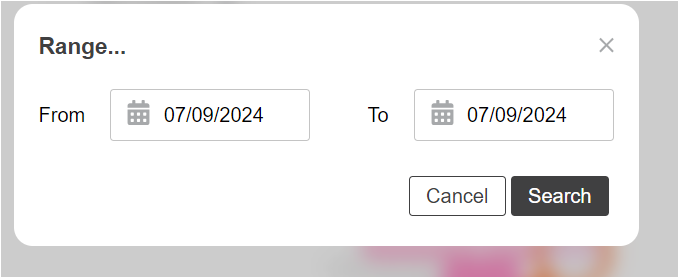
For the Range option, users can specify a custom date range by entering dates in the From and To input fields. Clicking the submit option will access the results.
The keyword will be highlighted in results for an easy eye zooming to your preferred information. You can select from the list of search results, which will open a tab to the left of the Search page.
This tab will display the chat, with the specific message containing the searched keyword highlighted.
If no relevant or exact results are found, the screen will display a message - "No search results for <keyword>"