SUP 1.2 Overview tab, queue identity, extensions and phone numbers
The Overview tab reports what the queue is and how it is reached.
- From the dashboard, select Supervisor.
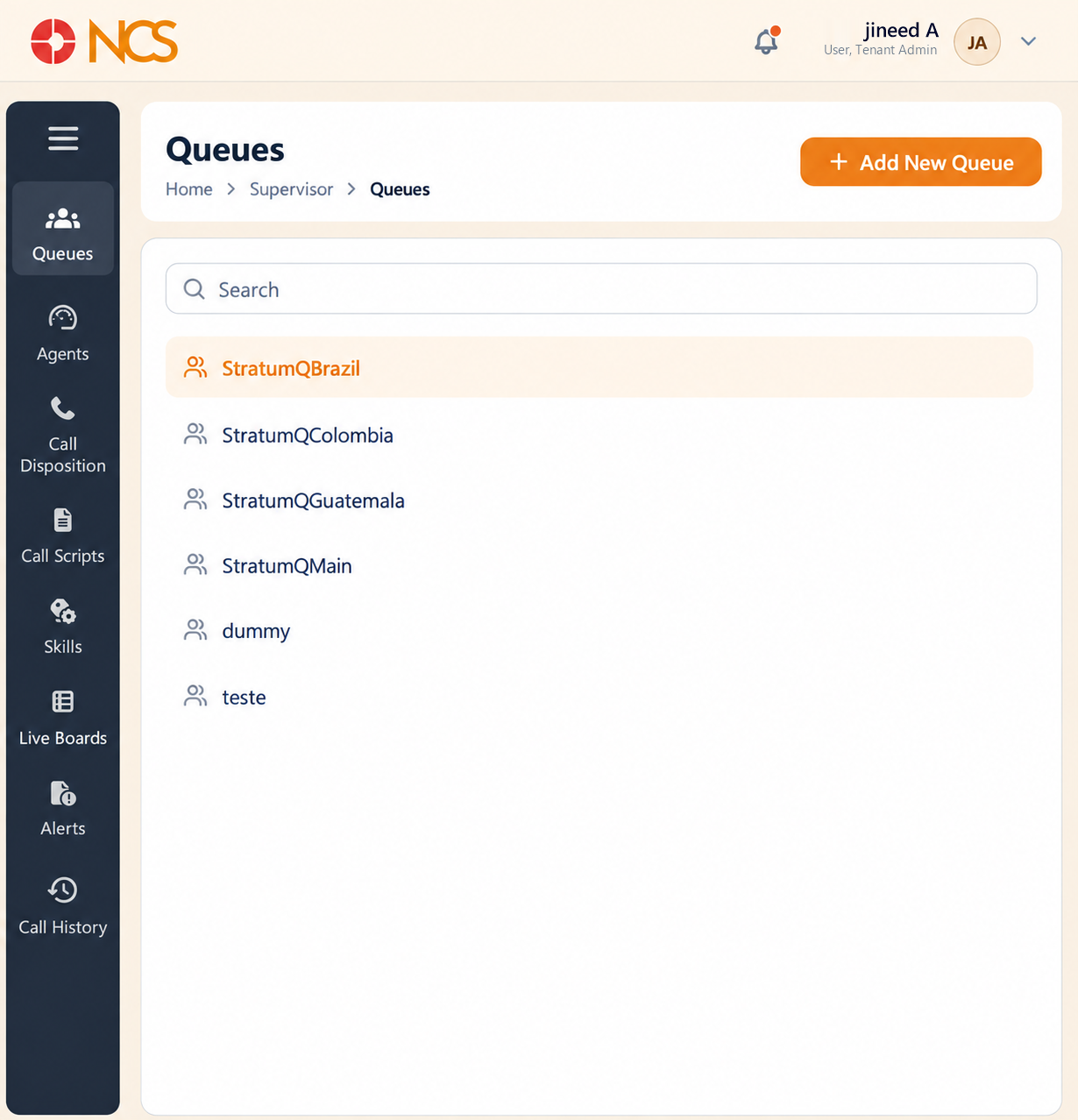
- On Queues, use Search and select a queue from the list.
- Open a queue and confirm Overview is selected.
- Review Queue Name and Queue Type.
- Under Extensions, select Add Extensions to assign an extension to the queue, or Unassign to remove the assignment shown.
- Under Phone numbers, select Add Number to assign a DID to the queue.
Extensions reach the queue from inside, phone numbers reach it from outside. A queue with extensions and no phone number can be transferred a call by a colleague but cannot be dialled by a customer. When the Phone numbers section shows the empty state No phone numbers assigned, no external caller can reach this queue directly.
Queue Type can render blank. On some queue records the Queue Type field displays nothing at all, so the value cannot be read from this tab. A blank Queue Type does not mean the queue is unconfigured or broken; the field simply has no value to show. Two consequences:
- Do not set other queue behaviour on an assumption about the type. Confirm the queue's type with support@ncsapp.com, quoting the queue name, before you rely on it.
- When you create a queue yourself, record the Queue Type you selected in your own runbook, because this tab may not report it back to you.
Figure key, Queue Overview
- Queue name in the page header.
- Overview tab, selected.
- Supervisor, Agents, Caller Experience and Settings tabs.
- Queue Name field.
- Queue Type field, which can render blank.
- Extensions section heading.
- Add Extensions control.
- Unassign control on an assigned extension.
- Phone numbers section heading.
- Add Number control.
- Empty state, No phone numbers assigned.