SUP 1.1 Review the queue list and open a queue
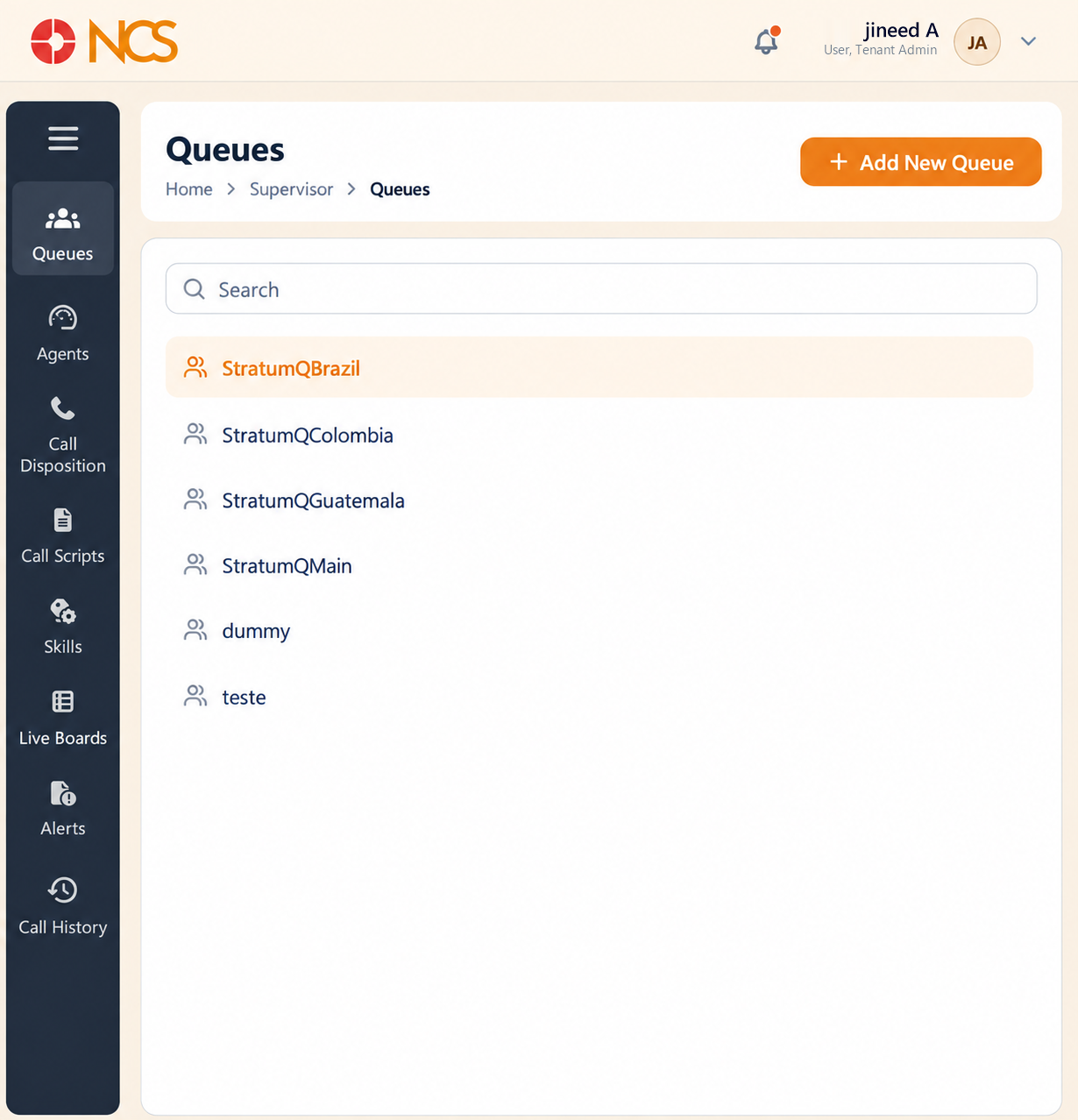
- Select the Supervisor tile on the dashboard. The module opens on Queues.
- Use Search to locate a queue.
- Select a queue in the list to open it.
The queue opens on its Overview tab. A queue has five tabs:
| Tab | What it configures |
|---|---|
| Overview | The queue's name and type, its extensions and its phone numbers. |
| Supervisor | Who supervises the queue and what they may do. |
| Agents | Who takes calls from the queue, with what skills and priority. |
| Caller Experience | What the caller hears while waiting. |
| Settings | Distribution, timing, capacity, SLA, wrap-up, breaks and compliance. |
Add New Queue sits on the queue list and opens the creation form (see SUP 1.7).
Figure key, Queues
- Breadcrumb.
- Left navigation, nine items, with Queues selected.
- Search field.
- Queue list.
- Add New Queue button.
- Queue detail panel, opened on the Overview tab.
- Tab row: Overview, Supervisor, Agents, Caller Experience, Settings.