SUP 6.3 Use the live wallboard
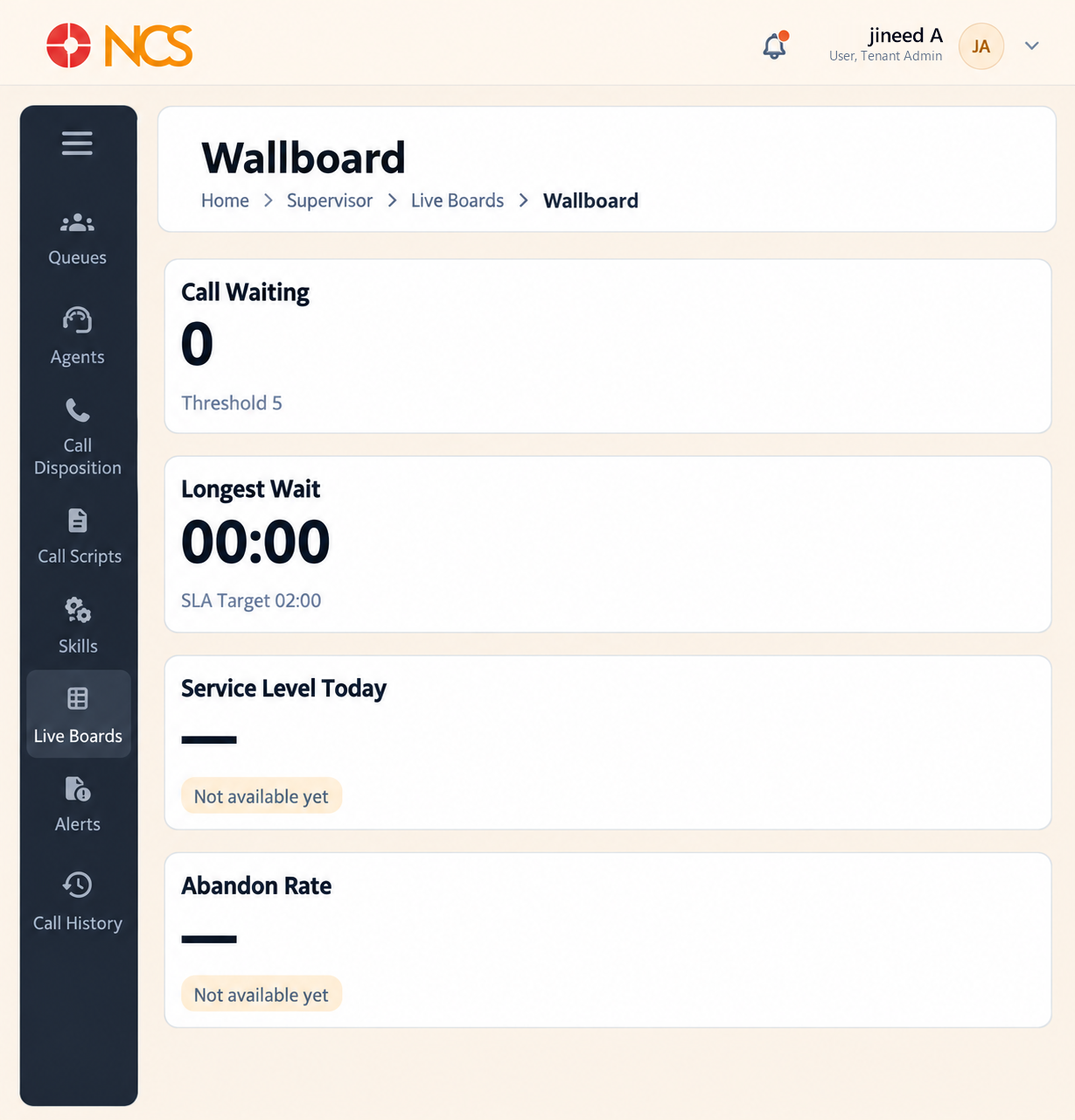
The Live Wallboard is the board to display on a screen the floor can see. The rail calls it Live Wallboard; the page itself is headed Wallboard.
- Open Supervisor > Live Boards > Live Wallboard.
- Select Expand view to fill the screen, which is how this board is meant to be run.
- Read Call Waiting, shown against its Threshold (for example Threshold 5), and Longest Wait, shown against its SLA Target (for example SLA Target 02:00).
- Read Service Level Today and Abandon Rate.
- Review Queues (Live), Roster Utilization, Top Performance (Today) and Call Volume (last 24 hours).
Roster Utilization here splits on Available, Busy, Hold, Wrap-Up, Not Ready and Offline.
The thresholds are what make a wallboard work. A number on a wall is ignored; a number that turns colour when it crosses a threshold changes behaviour. Set the queue's SLA Time and Alarm Threshold (see SUP 1.6) to values your team can actually act on, then leave the board up.
Abandon Rate is the honest measure of a caller's experience. Service Level counts the calls you answered in time. Abandon Rate counts the people who gave up. Read them together.
Figure key, Live Wallboard
- Live Wallboard board, selected.
- Call Waiting measure, with its threshold.
- Longest Wait measure, with its threshold.
- Service Level Today measure.
- Abandon Rate measure.
- Queues (Live) panel.
- Roster Utilization panel.
- Top Performance panel.
- Call Volume panel.