SUP 6.2 Monitor live agent status
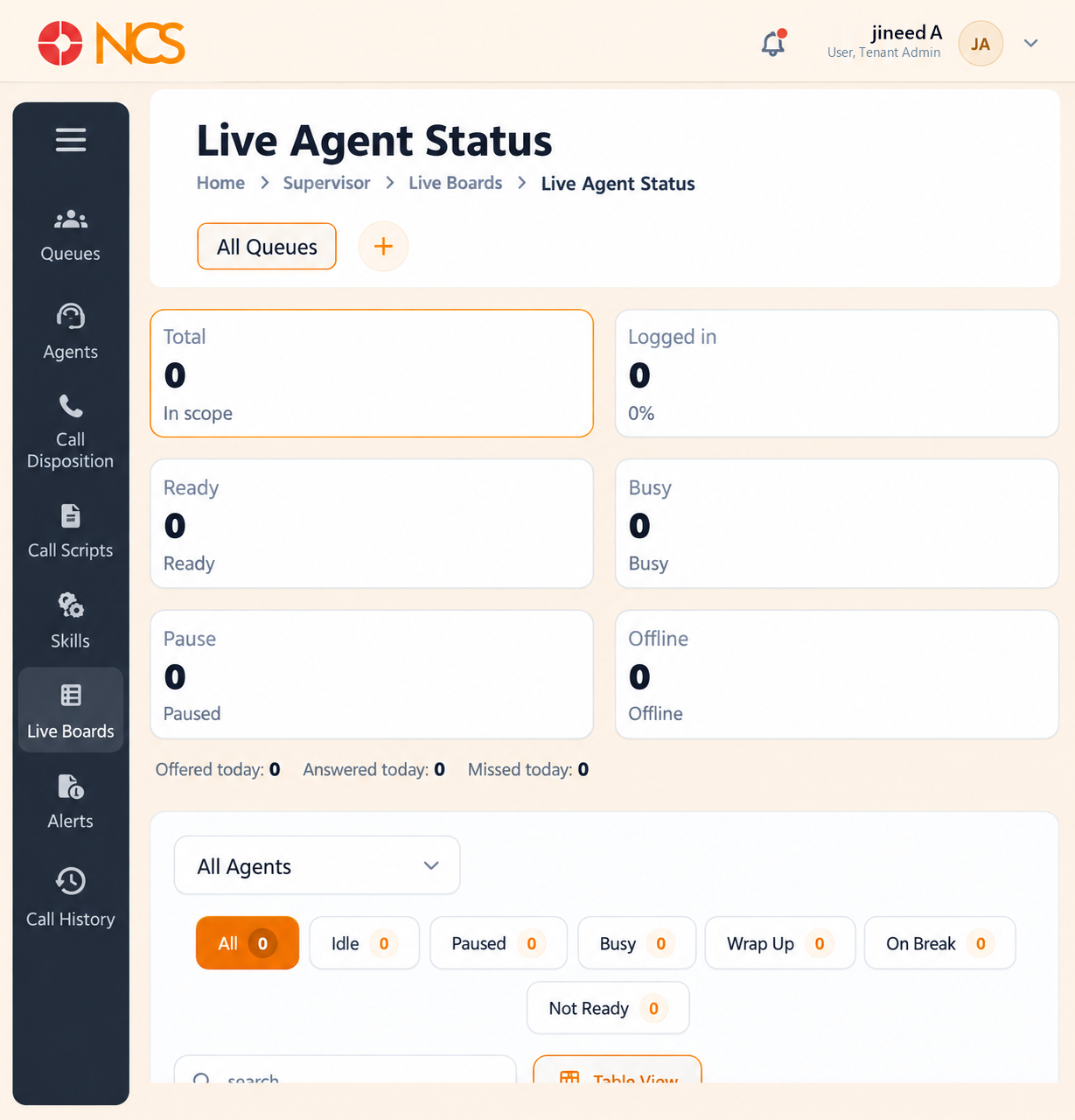
Open Supervisor > Live Boards > Live Agent Status.
- Select the queue scope, All Queues by default.
- Read the counts: Total ("in scope"), Logged in (with a percentage), Ready, Busy, Pause ("Paused") and Offline.
- Beneath them sits a day summary: Offered today, Answered today and Missed today.
- Use the sort options, Name: Z to A, Time in State: Max and Time in State: Min, and the state filters All, Idle, Paused, Busy, Wrap Up, On Break and Not Ready.
- Use Table View to change the presentation, and Rows per page, which offers 4, 8, 12 and 16.
- Select Reset all filters if the current filters are hiding agents you expect to see. The empty state reads "No agents found matching these filter conditions."
The state vocabulary is not the same as the queue's. This board filters on Idle, Paused, On Break and Not Ready, while the queue Agents tab (SUP 1.4) showed Ready and Logout, and Roster Utilization on SUP 6.1 splits on Available, Busy, Hold, Wrap Up, Not Ready and Offline. Three overlapping sets of state names describe the same agents. Read each board's own labels rather than assuming they map one to one.
Ready is the number that matters during a spike. Logged in counts people at their desks; Ready counts people who can be handed the next call. A queue with fifteen logged in and one Ready is a break-management or wrap-up problem (see SUP 1.6), not a staffing one.
Select Reset all filters before you conclude anything. The filters persist as you move between boards, so an empty agent list is more often a filter left on than an empty floor.
Figure key, Live Agent Status
- Live Agent Status board, selected.
- Queue scope selector.
- Total count.
- Logged in count.
- Ready count.
- Busy count.
- Pause count.
- Offline count.
- Sort option.
- State filters.
- Search field.
- Table View control.
- Reset all filters control.