SUP 3.2 Create a disposition
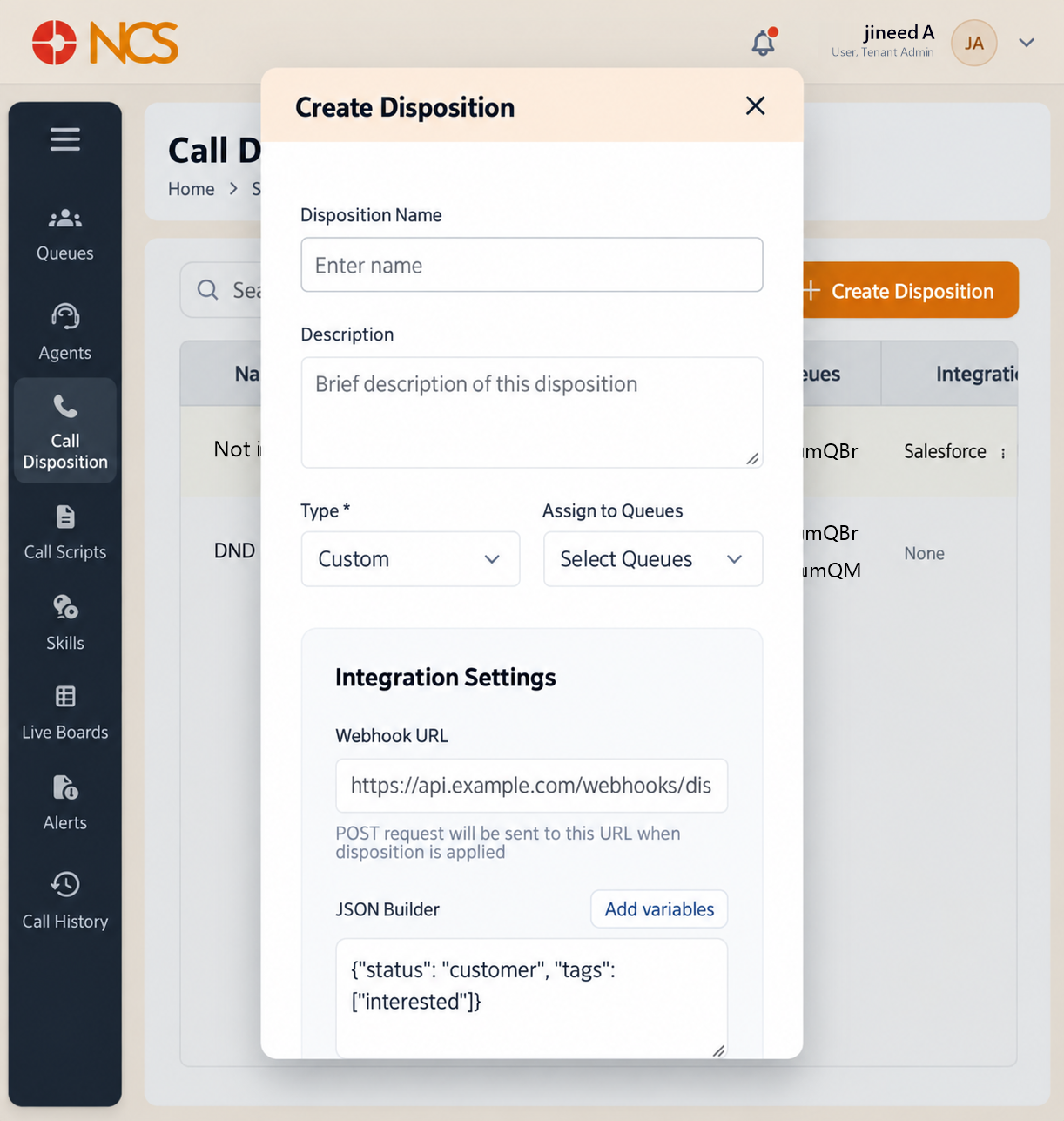
Create Disposition opens a dialogue with the same title.
- Open Supervisor > Call Disposition.
- Select Create Disposition.
- Enter the Disposition Name, placeholder Enter name.
- Enter the Description, placeholder Brief description of this disposition.
- Set the Type. The field is marked mandatory with an asterisk, Type *, and shows Custom.
- Select Assign to Queues, placeholder Select Queues, and choose the queues this disposition applies to.
- If the outcome must reach an external system, complete Integration Settings:
- Enter the Webhook URL, placeholder https://api.example.com/webhooks/disposition. Its own helper text states: "POST request will be sent to this URL when disposition is applied".
- Build the payload in JSON Builder.
- Use Add variables to insert supported values rather than typing them.
- Set Auth Type and the Auth details. The auth fields carry the placeholder e.g., https://api.example.com/v1/auth/token.
- Set Retry, default 2 min, and Time out, default 5 min.
- Select Save, or Cancel.
Figure key, Create Disposition form
- Form title.
- Disposition Name field.
- Description field.
- Type selector.
- Assign to Queues selector.
- Webhook URL field.
- JSON Builder area.
- Add variables control.
- Authentication controls.
- Retry control.
- Time out control.
- Cancel button.
- Save button.