2.1 Review and search the Users list
Tenant > Users is where you create the people who will use the phone system, set what they can administer, and connect them to telephony. It is the first page to work through when you set the product up: a person needs a tenant user record before they can be given an extension, added to a queue or assigned to a campaign.
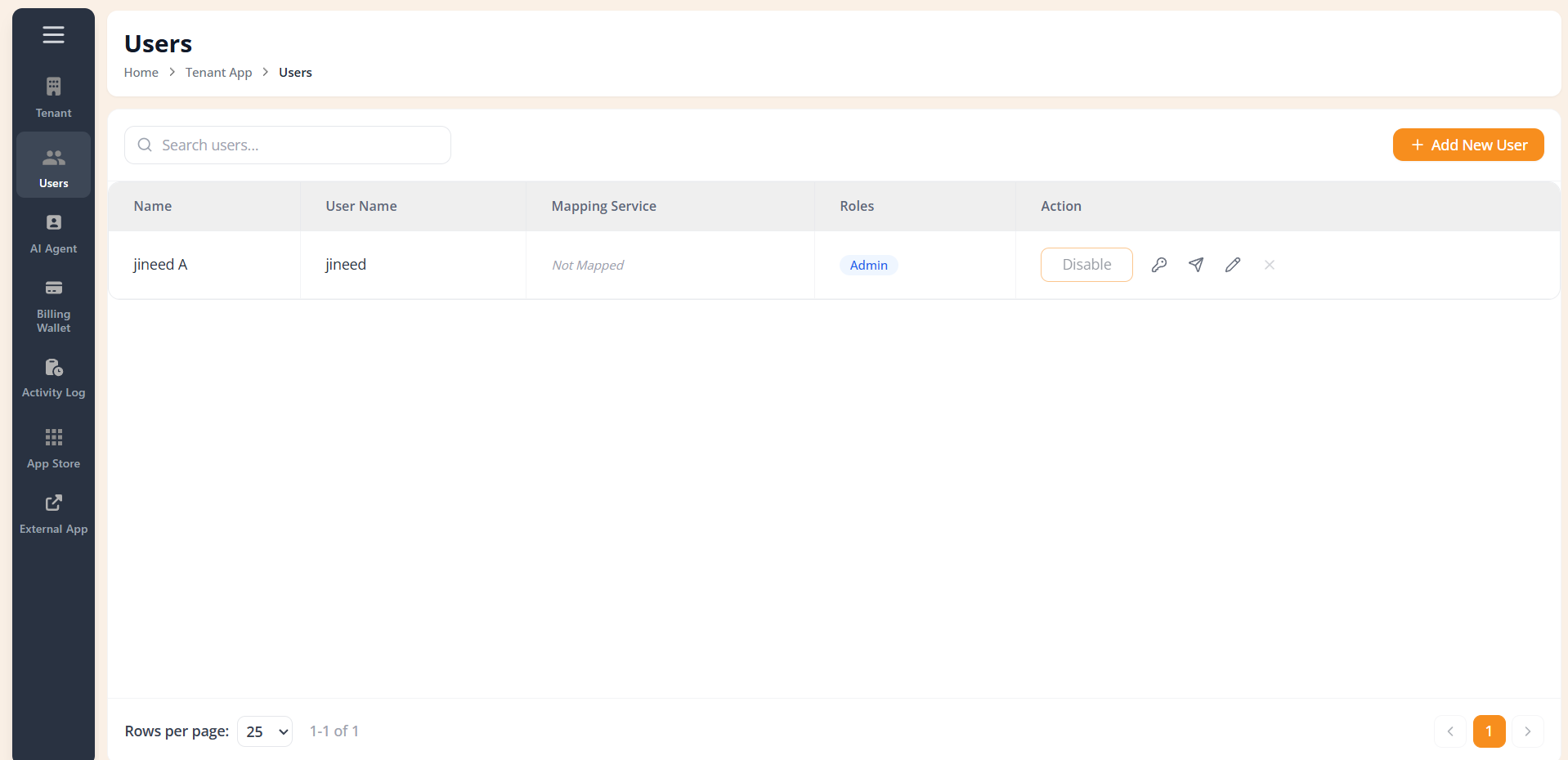
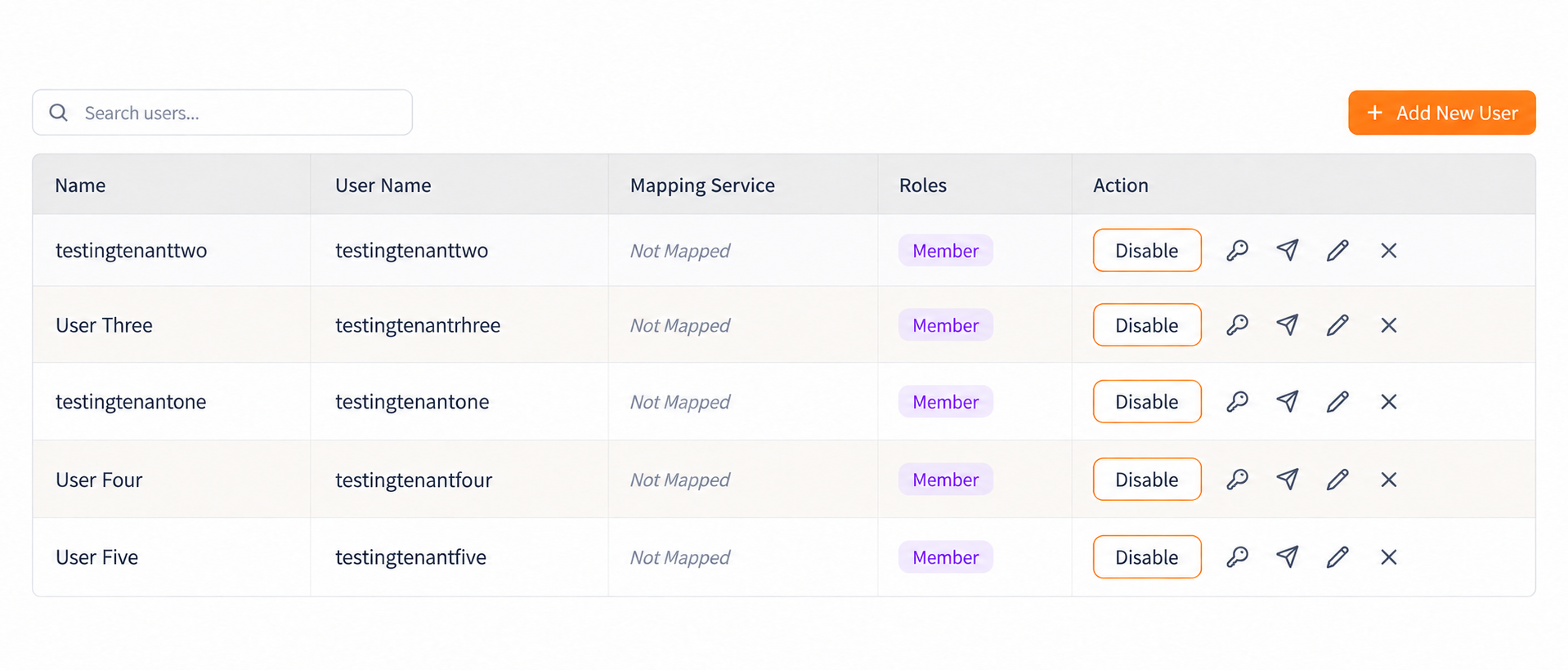
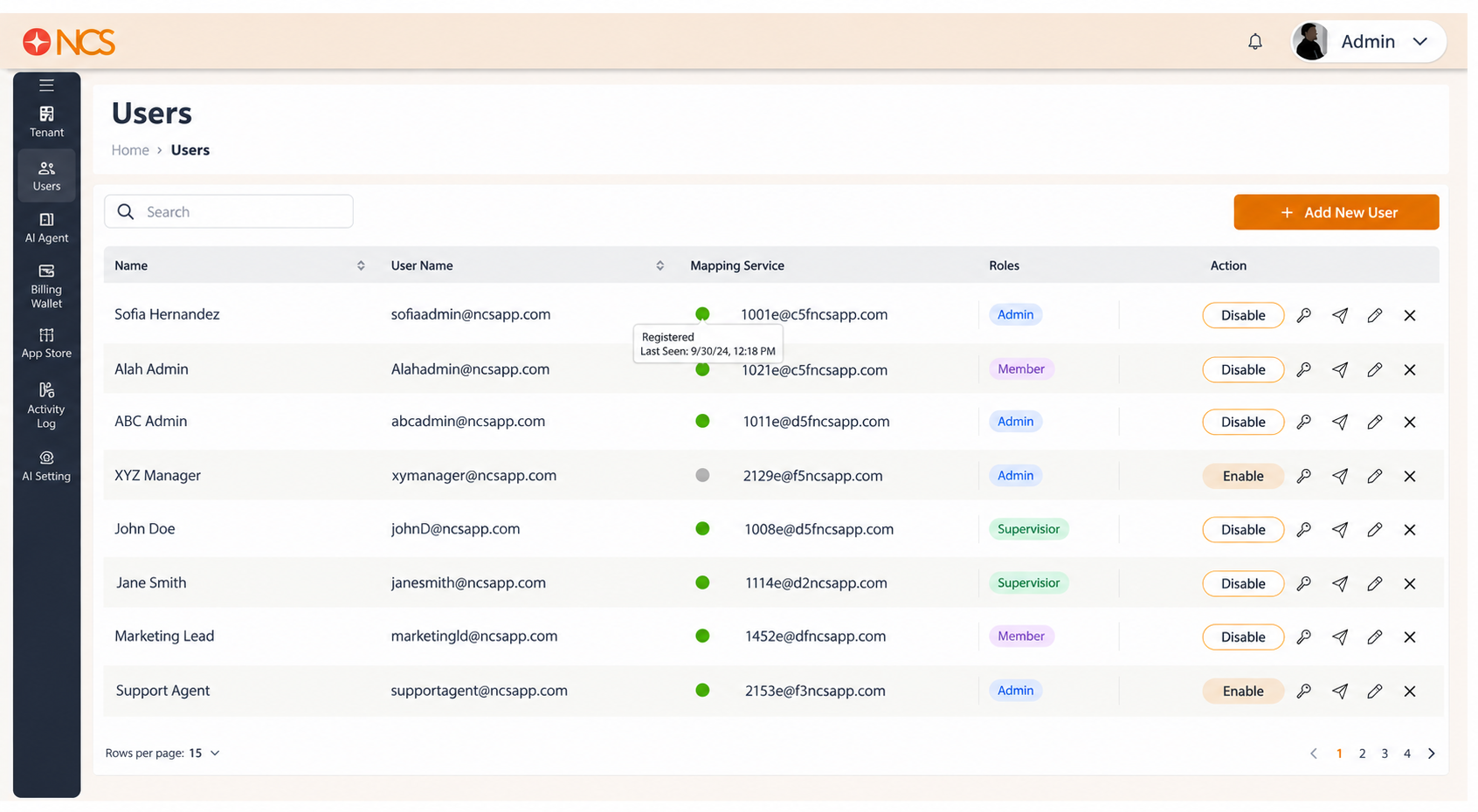
The Users page lists every user account on your tenant.
Controls above the table -
- Search users, filters the list by name.
- Add New User, top right, opens the creation form (see 2.6).
| Column | Contents |
|---|---|
| Name | The user's display name. |
| User Name | The login identifier the user signs in with. |
| Mapping Service | The user's telephony mapping, plus a registration status dot. See 2.2. |
| Roles | The role or roles assigned to the user, shown as Admin or Member. See 2.3. |
| Action | Five row controls. See 2.4. |
Pagination. Rows per page at the bottom left offers 10, 25, 50 and 100, and defaults to 25. The footer to its right reports the visible range and the total, for example 1-19 of 19, and carries the page number and arrow controls. That total should match Number of Users on Tenant > Tenant (see 1.1); if it does not, report the difference to support@ncsapp.com.
Figure key, Users list
- Breadcrumb.
- Left navigation, with Users selected.
- Search users field.
- Add New User button, top right.
- Name column.
- User Name column.
- Mapping Service column, containing the extension value and the registration status dot.
- Roles column.
- Action column, with the five row controls.
- Rows per page selector, bottom left.
- Record count and page controls, bottom right.