2.11 Edit a user, Mapping Service tab
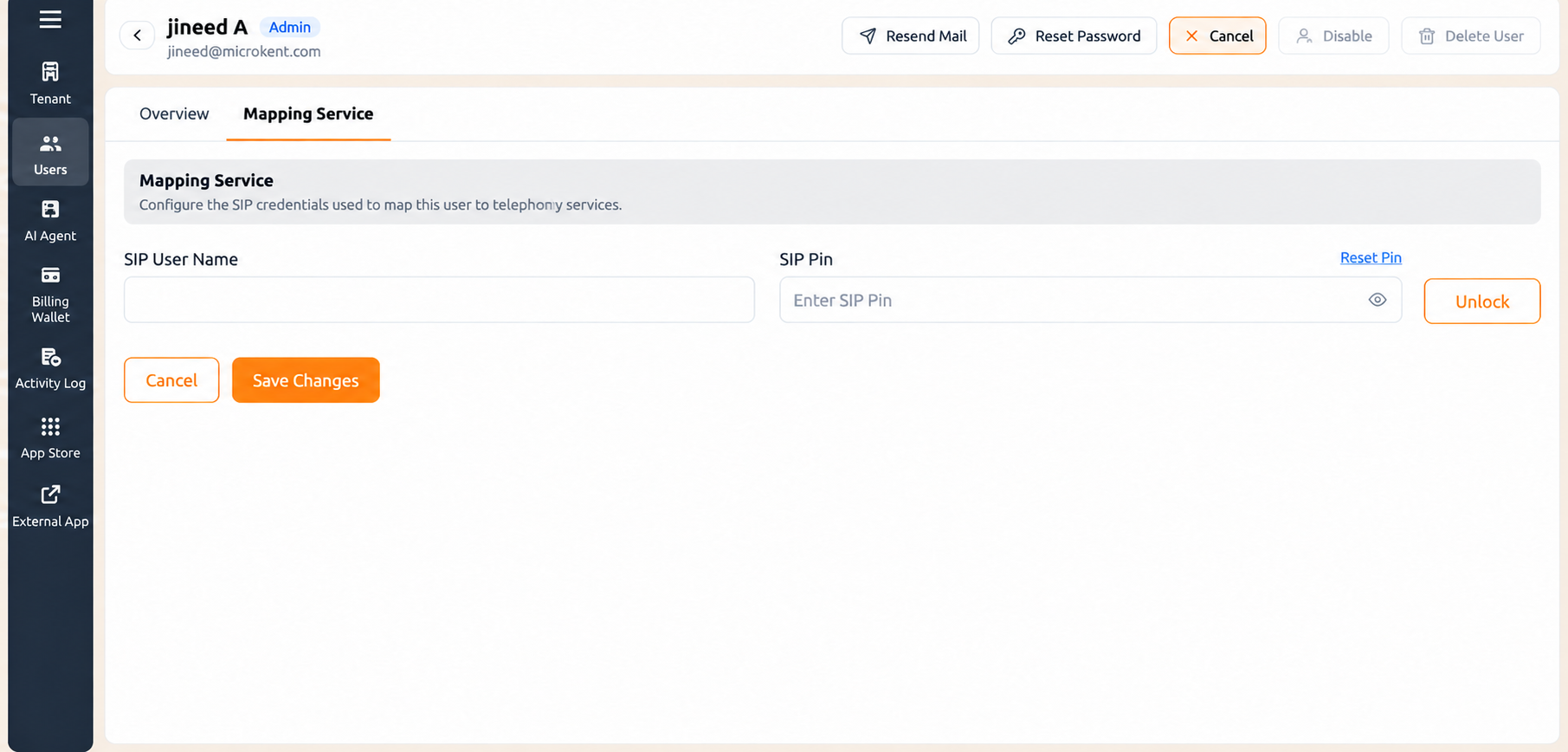
The Mapping Service tab connects the user to telephony. Until it is completed and PBX and voice access is unlocked, the user can sign in to the portal but cannot make or receive calls.
Fields:
| Field | What to enter |
|---|---|
| SIP User Name | The SIP identifier that maps this user to telephony services. This is the value that appears in the Mapping Service column of the Users list, and it is the user's extension. |
| SIP Pin | The SIP PIN for the user. Select the eye icon to reveal the characters and confirm what you typed. |
Reset Pin sits beside the SIP Pin field and generates a new PIN for the user. Unlocking PBX and voice access. When telephony is locked for a user, the tab shows this warning: "PBX/VOICE Access is currently locked. Click 'Unlock' to activate services for this user." Unlock sits inline beside the SIP Pin field, on the same row, well below the page header. It is not one of the five quick actions at the top right.
- Open the user record and select the Mapping Service tab.
- Enter the SIP User Name for this user.
- Enter the SIP Pin.
- Select Unlock beside the SIP Pin field.
- Select Save Changes.
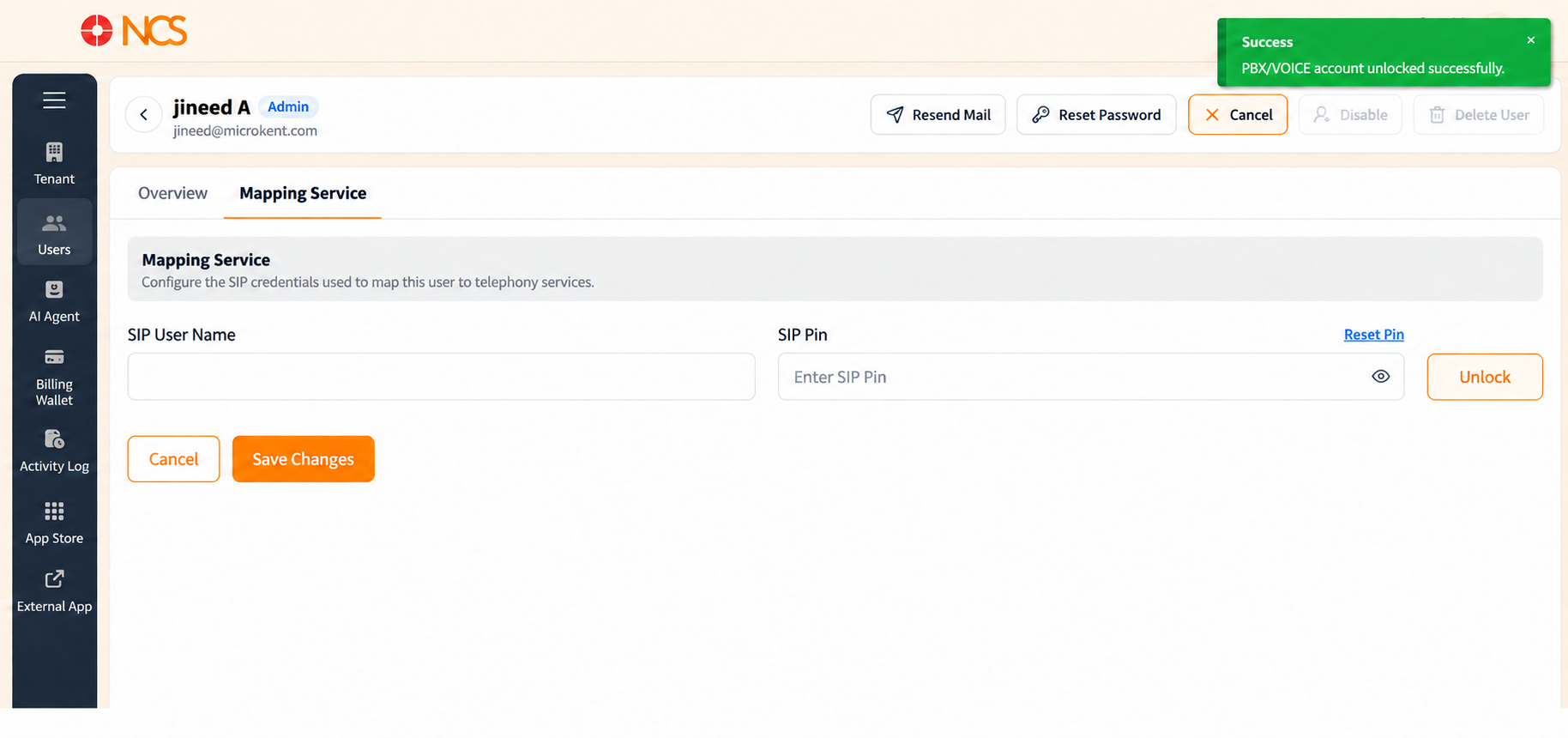
On a successful unlock a green notification appears at the top right reading "PBX/VOICE account unlocked successfully." Select the X on the notification to dismiss it, or leave it and it clears itself after a few seconds. The locked warning no longer appears, and the user's SIP credentials can be used to reach telephony services.
Saving - Select Save Changes to apply the mapping, or Cancel to leave without applying it.
Figure key, Edit User, Mapping Service tab
- Back arrow (
<), top left. - Overview tab.
- Mapping Service tab, selected.
- Quick actions at the top right: Resend Mail, Reset Password, Cancel, Disable, Delete User.
- Locked-state warning, "PBX/VOICE Access is currently locked. Click 'Unlock' to activate services for this user."
- SIP User Name field.
- SIP Pin field, with the eye icon that reveals the characters.
- Unlock control, inline beside the SIP Pin field.
- Reset Pin control.
- Cancel button.
- Save Changes button.
- Success notification, top right, "PBX/VOICE account unlocked successfully."