PBX 5.2 Create an office-hours strategy
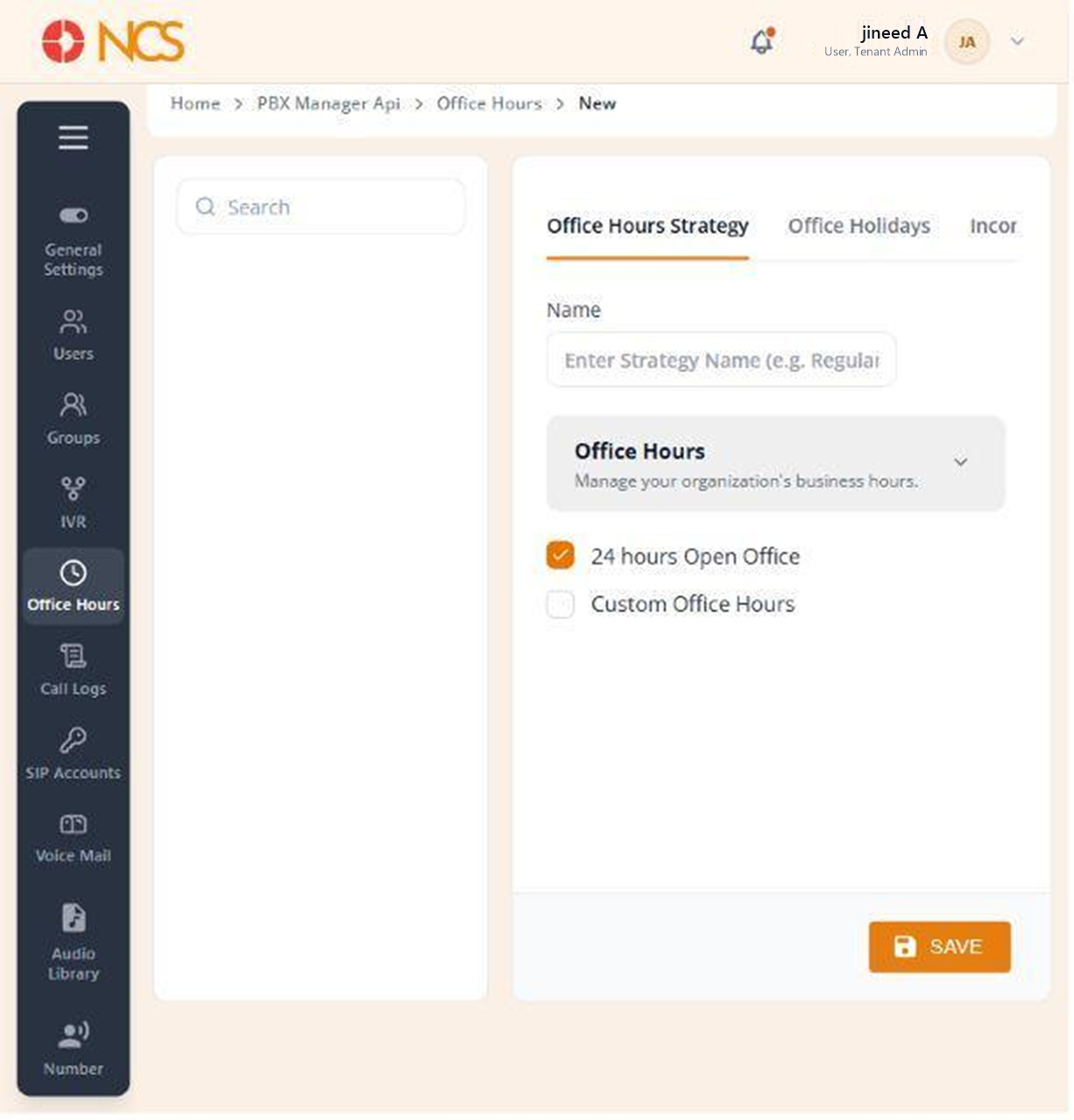
A strategy is built across three tabs, Office Hours Strategy, Office Holidays and Incoming Call Handling, each with its own SAVE.
- Open PBX Manager > Office Hours and select Add New Office Hours Strategy.
- Enter the strategy Name. The placeholder shows the expected form: Enter Strategy Name (e.g. Regular Business Hours).
- Under Office Hours, "Manage your organization's business hours", choose the operating pattern:
- 24 hours Open Office, for a continuously staffed operation.
- Custom Office Hours, to define specific operating periods.
- Selecting Custom Office Hours reveals a Day list covering Monday through Sunday, plus a Closed For Lunch Hours option. Set the operating periods for each day.
- Select SAVE.
Lunch is a separate schedule state, not a gap in the day. Selecting Closed For Lunch Hours here is what makes the Lunch Hours routing state on the Incoming Call Handling tab (PBX 5.4) reachable. Set the two together, or you will configure a lunch route that never fires.
Set the schedule in your own operating timezone and confirm it. A schedule an hour out sends every early call to the closed-hours route, which reads to a customer as an organisation that does not answer its phone.
Figure key, Office Hours Strategy
- Strategy Name field.
- 24 hours Open Office option.
- Custom Office Hours option.
- Per-day period controls, shown when Custom Office Hours is selected.
- Save button.