Audio & Video
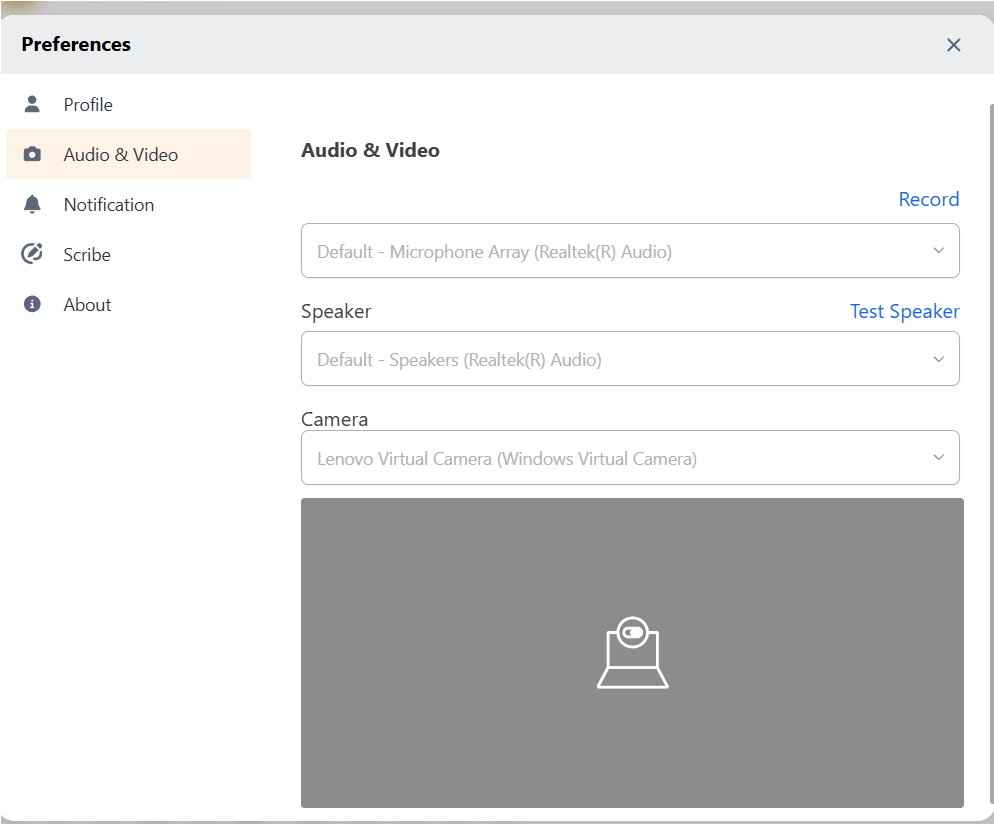
The Audio & Video tab in the Settings page helps you manage your audio-video setup, ensuring clear sound and high-quality resolution for better communication. The page lists three audio-video devices - Microphone, Speaker and Camera.
Okay, I understand. I'm ready to receive the transcript.
Microphone
The Microphone drop down lists all the microphone devices of your system, both internal and external. These devices are auto-populated. External devices are listed on if they are connected and are ready to use in the system settings. Select from the list your preferred device for Mic.
To test your selected microphone’s quality, click on the Record option above the dropdown. Speak into the microphone to test, then press the stop button to end the recording. Press the play button to review the recorded sound. You can try out all the available microphones and decide on which one is your preferred. Click on the Save all Changes button to update and save any change done.
Test Speaker
The Speakerdrop down lists all the speaker devices of your system, both internal and external. These devices are auto-populated. External devices are listed on if they are connected and are ready to use in the system settings. Select from the list your preferred device for Speaker.
To test your speaker, click on the Test Speaker option to check the quality of your selected speaker. You will hear a system set audio. Once you are ok with the speaker, click on the Stop option. You can try all the available speakers and select your preferred one from the list. Click on the Save all Changes button to update and save any change done.
Camera
The Camera drop down lists all the camera devices of your system, both internal and external. These devices are auto-populated. External devices are listed on if they are connected and are ready to use in the system settings. Select from the list your preferred device for Camera.
You can see the preview of your Camera video in the preview section below the Camera drop down, Select your preferred Camera device and click on the Save all Changes button to save the selection.