My Profile
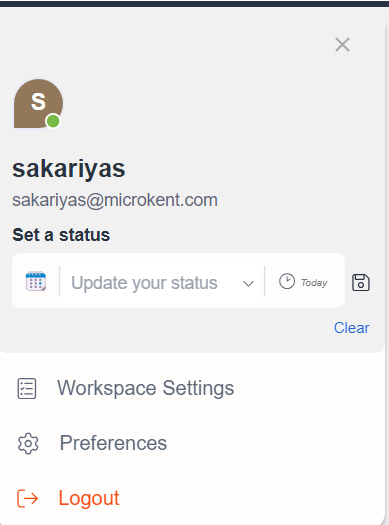
My Profile of NCS can be accessed by clicking on the Avatar icon at the top right corner. Once you click on the Avatar, a profile modal will pop up, which displays the user's bio, including Name, Registered Email Address, and Set a Status for updating their current state or condition. The modal also acts as a quick access for Settings and Log Out.
Set a Status
Click on the My Profile Avatar icon at the top right corner of the NCS to display the My Profile modal. Below the Name and Email ID, you can set your user-defined status using emojis, texts and for a specific time period in the Set a Status section. Click on the Emoji icon to display the Emoji dropdown and choose from a variety of emojis, including smileys, objects, food, animals, and activities to pair with your status.
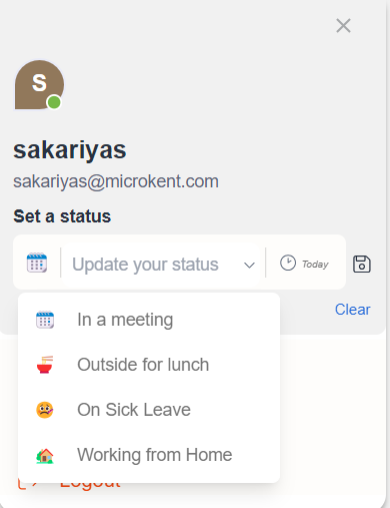
In the Text input field, you can update statuses from the dropdown or type down a custom status, which will be displayed on your profile. The dropdown list system preset statuses such as In a Meeting, Outside for Lunch, On Sick Leave and Working from Home; as well as any previously set statuses.
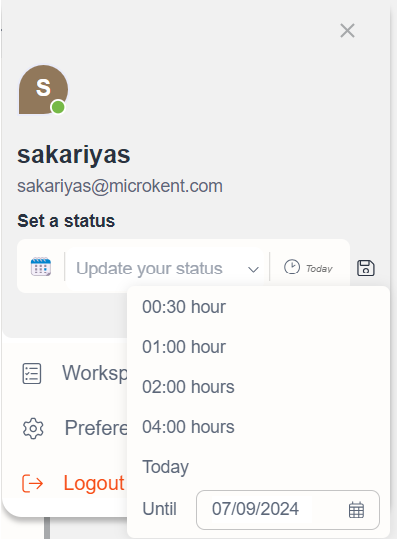
The Time Period dropdown allows you to set the duration of your status display of the time until which the status will be displayed to others. Choose from preset options like 30 minutes, 1 hour, 2 hours, 5 hours Today, or set a custom time by inputting a date in the Until field.
After updating / changing your status, click on the Save icon at the leftmost end of the Set a Status to save the changes. You can access more functionalities of Set a Status in the Settings Modal. Read more on Set a Status.
Preferences
To access and edit your profile and App settings, click on the My Profile Avatar icon, then select Settings. This will open the Settings Modal with four tabs - Profile, Audio & Video, Notifications, and About.
Workspace Settings
By clicking on the Workspace settings , You will be redirected to the NCS Tenant portal.
Logout
To sign out of the NCS App, click on the Logout menu item from the My Profile modal. A confirmation modal will appear, prompting you with the question, Are you sure you want to log out of NCS? You can choose either Logout to proceed or Cancel to remain logged in.