6.1 Browse and install an application
المستأجر > متجر التطبيقات lists the integrations available to your tenant and the ones already installed. Installing or removing an application changes tenant-wide integration behaviour, so agree each change with the owner of the target system first.
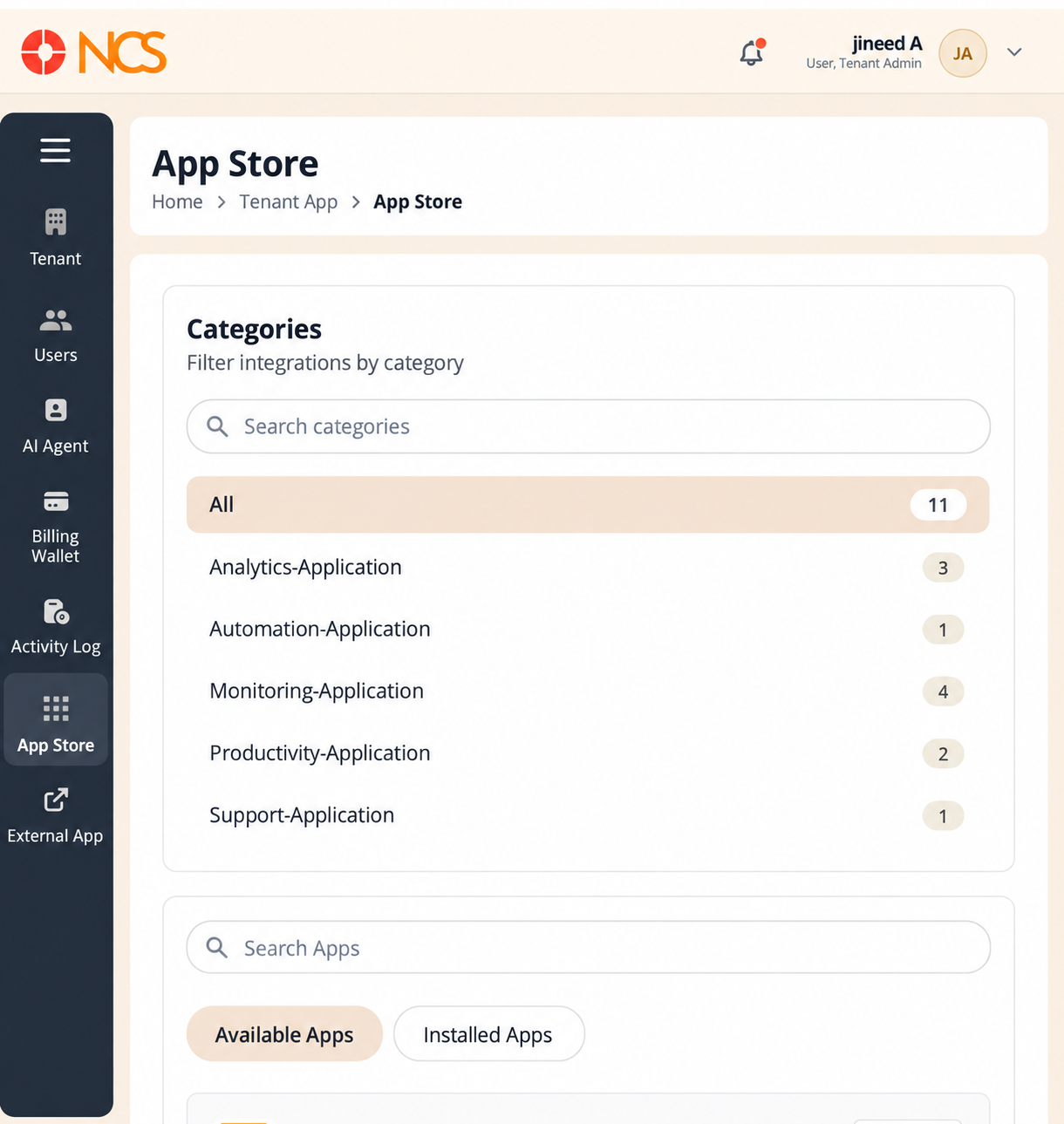
- Open المستأجر > متجر التطبيقات.
- حدد the Available Apps tab.
- Narrow the list either by category or by name:
- Use بحث categories to find a category, or select a category directly.
- أدخل application name in بحث Apps.
- Read the application's description.
- حدد Install.
Categories - The interface names its categories with an -Application suffix, and shows a count beside each:
| Category as displayed | Count |
|---|---|
| All | 11 |
| Analytics-Application | 3 |
| Automation-Application | 1 |
| Monitoring-Application | 4 |
| Productivity-Application | 2 |
| Support-Application | 1 |
The counts are what your tenant has available. The All count includes applications already installed as well as those still available, so All is larger than the number of tiles on the Available Apps tab. Your counts change as you install applications.
The application catalogue. Ten integrations are available -
| Application | Category |
|---|---|
| Google Calender | Productivity |
| Zendesk | Support |
| Zabbix | Monitoring |
| Jenkins | Automation |
| Grafana | Monitoring |
| Datadog | Monitoring |
| Kibana | Monitoring |
| Power BI | Analytics |
| Tableau | Analytics |
| Splunk | Analytics |
The calendar integration is spelled Google Calender in the interface. بحث for it with that spelling. The intended name is Google Calendar.
Figure key, Available Apps
- مسار التصفح.
- Left navigation, with متجر التطبيقات selected.
- Available Apps tab, selected.
- Installed Apps tab.
- بحث categories field.
- Category list, each entry with its count: All, Analytics-Application, Automation-Application, Monitoring-Application, Productivity-Application, Support-Application.
- بحث Apps field.
- Application tile, showing the application name.
- Application description on the tile.
- Install button on the tile.